1. View your history
To view your password history, open the Password Generator and click the clock icon at the top of the screen.
Feature: Password Generator History
Keeper's Password Generator History feature stores previously generated passwords and passphrases, giving you instant access to recently created credentials.
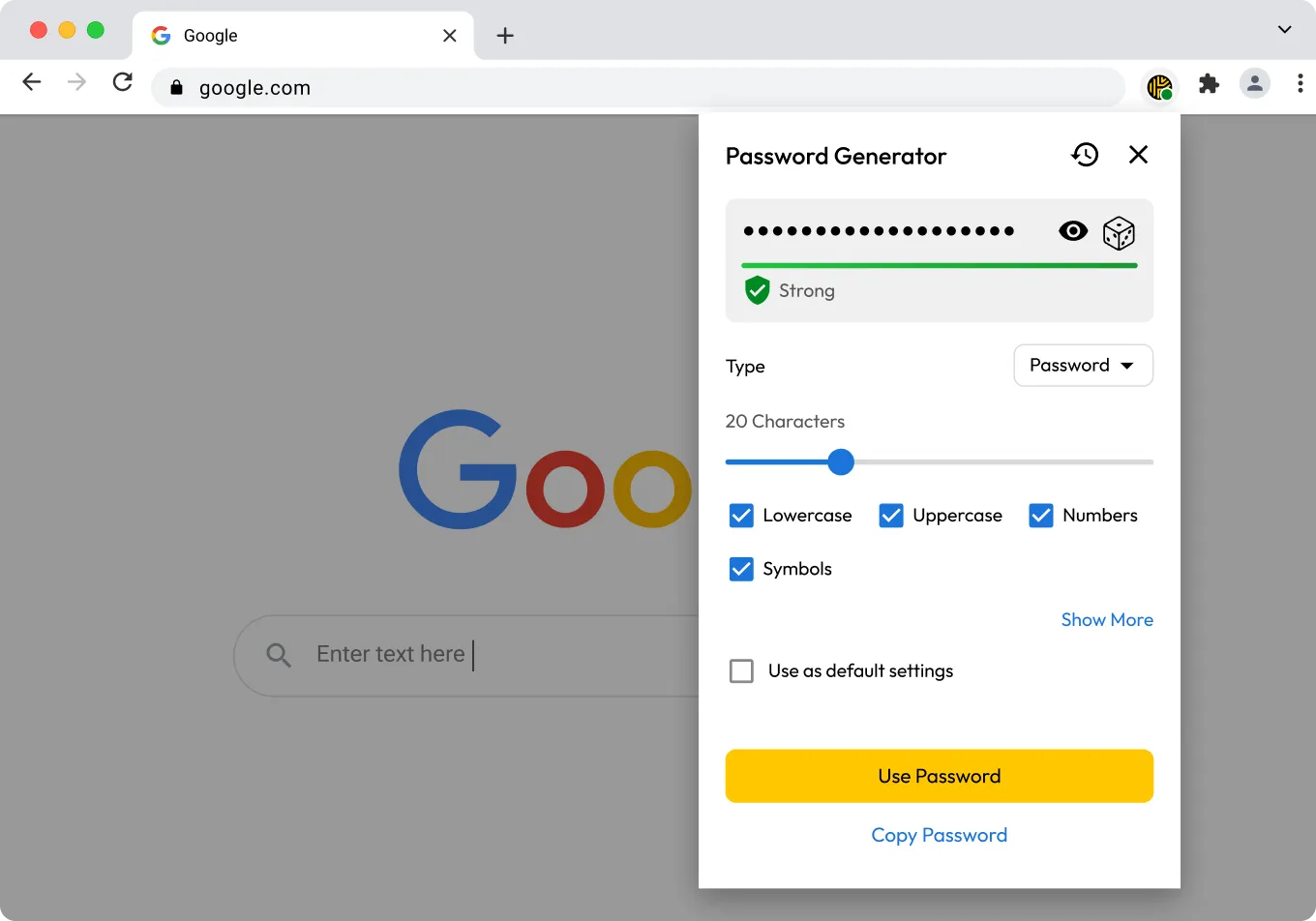
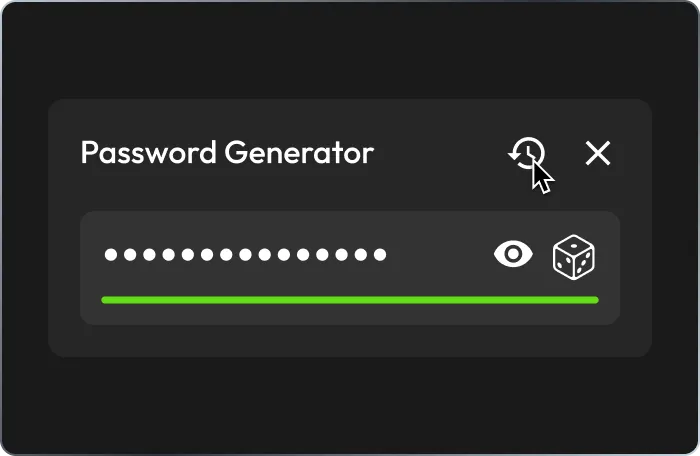
To view your password history, open the Password Generator and click the clock icon at the top of the screen.
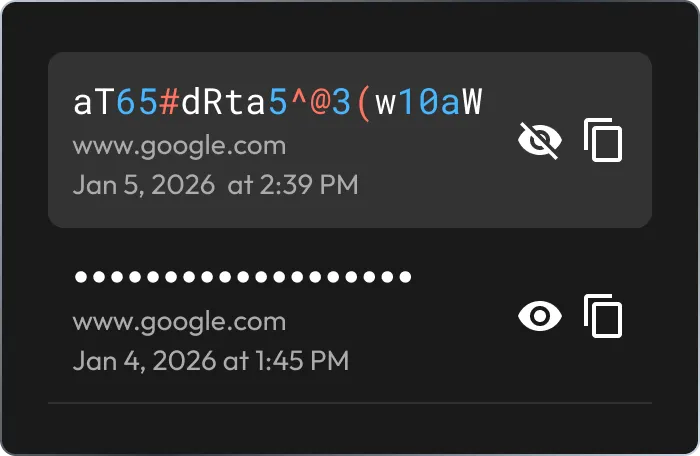
Hover over any credential created with the password or passphrase generator to view or copy it to your clipboard.
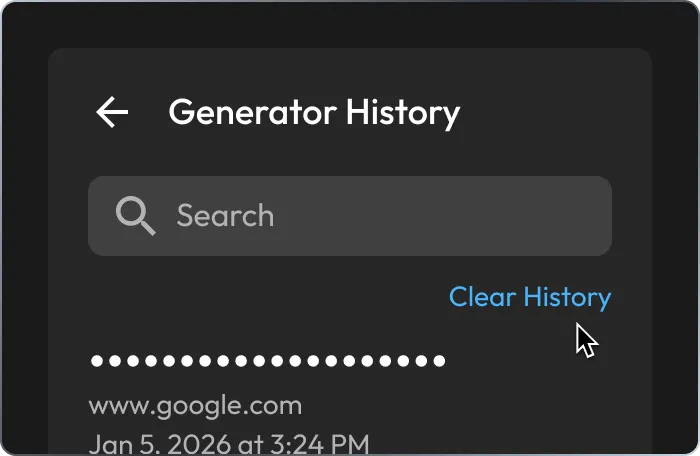
When needed, permanently erase previously generated credentials by selecting Clear History.
Immediately access previously generated passwords and passphrases when updating login credentials or creating new accounts.
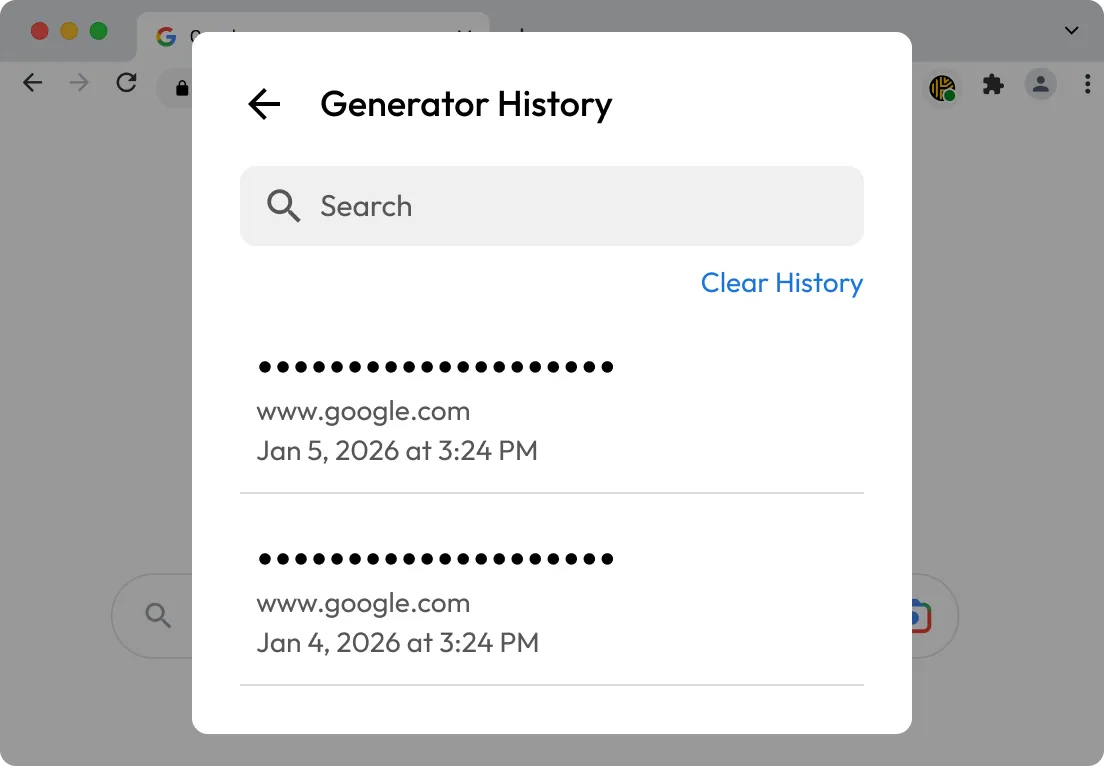
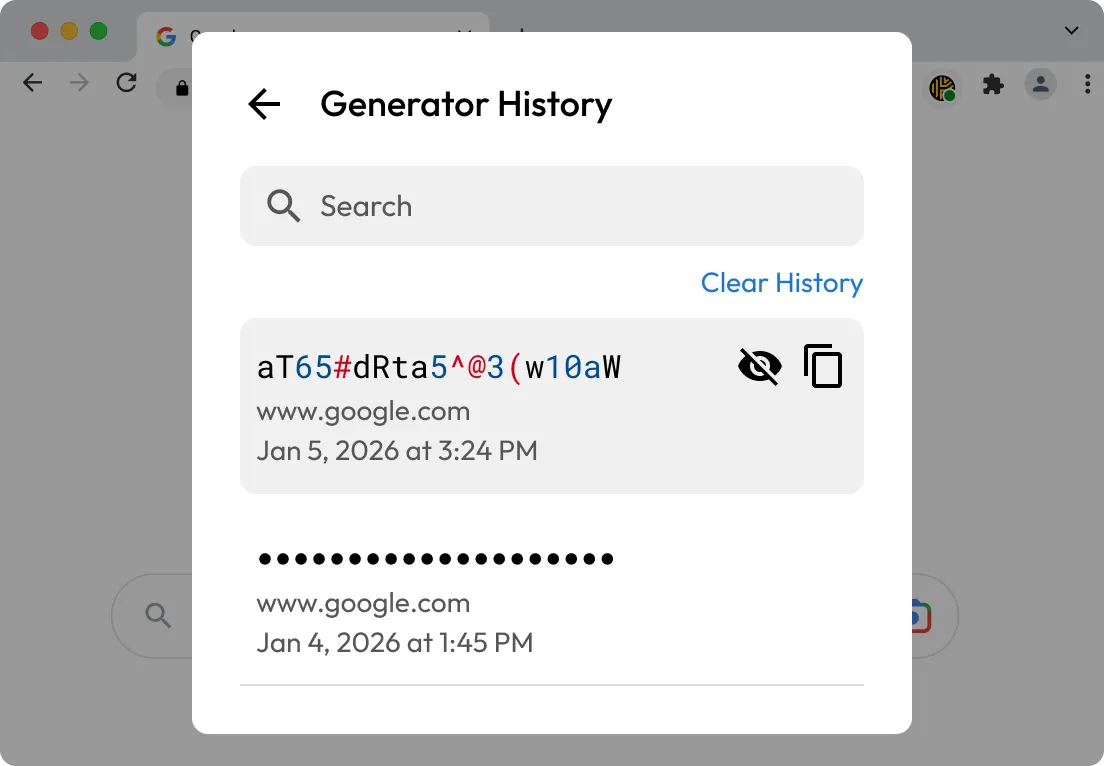
Copy any password or passphrase in your generator history directly to your clipboard, eliminating guesswork and the need to regenerate.
Whether you create credentials manually or generate them with Keeper, all credentials are stored in your vault with zero-knowledge encryption for maximum security.
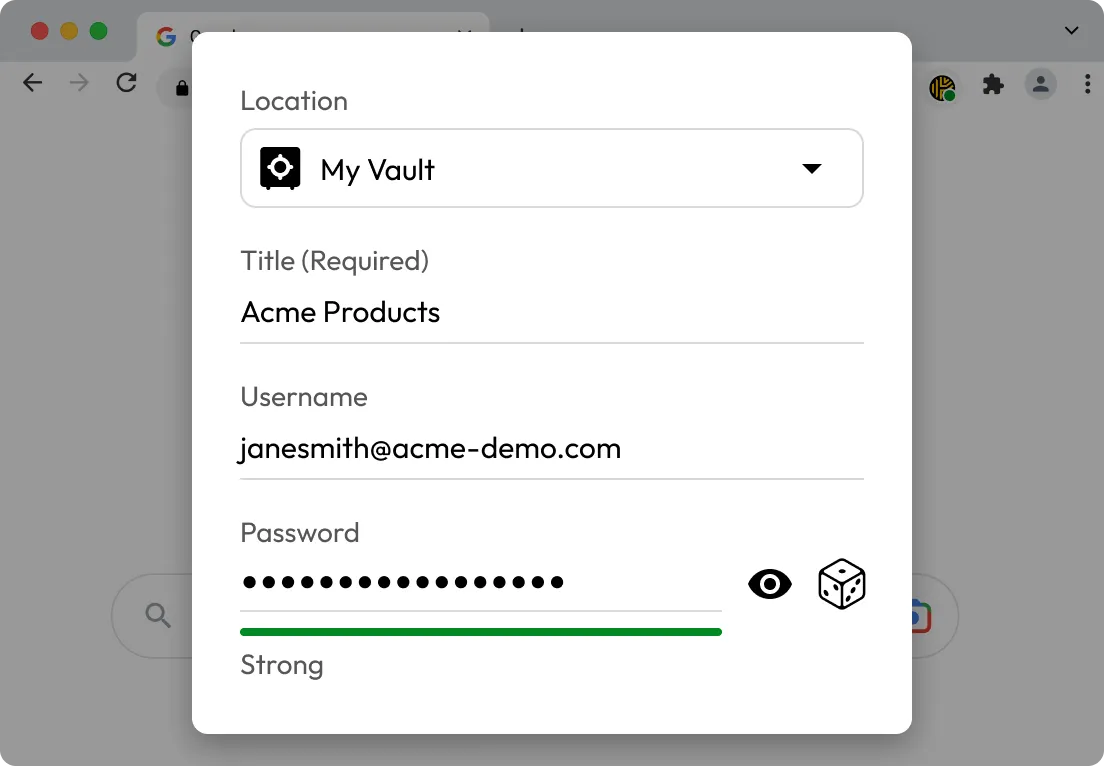

You generated a password but didn't save it to your vault, or you closed your browser too soon.

You're testing several password or passphrase options and want to review them for security or memorability.
Yes, if you used Keeper's password or passphrase generator but forgot to save it to a record, you can retrieve it from Generator History. To do this, click the clock icon in the generator window.
Generator History is saved locally in your encrypted Keeper Vault and is only accessible through your account. No generated credentials are ever stored externally or shared with Keeper's servers, maintaining a zero-knowledge architecture.
After customizing your generator settings to the appropriate length, character types and separators, check the box labeled Use as default settings at the bottom of the generator screen. This will save your preferences and apply them to all future password and passphrase generations.
No, changing or generating a credential with Keeper does not update that credential on its associated website. You must manually update the password or use KeeperFill to update it.

You must accept cookies to use Live Chat.