Feature: Passkeys
Manage passkeys securely and easily with Keeper.
Whether you're securing personal accounts or managing access across a business, Keeper ensures your passkeys are safe, synced and ready when you need them.
Feature: Passkeys
Whether you're securing personal accounts or managing access across a business, Keeper ensures your passkeys are safe, synced and ready when you need them.
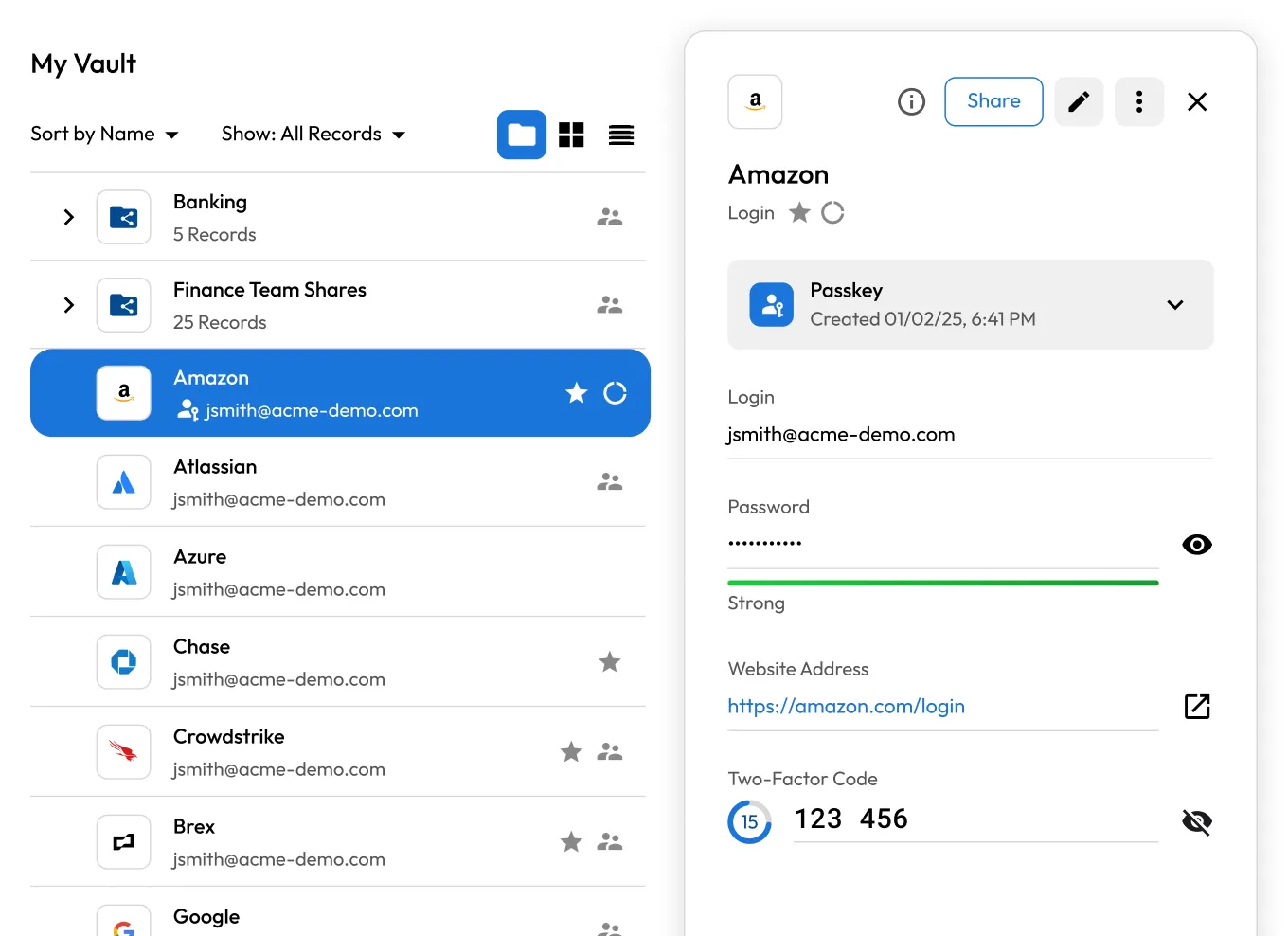

When you create a passkey on a website or app, Keeper automatically detects it and prompts you to securely save it in your vault.

The passkey is securely stored in your Keeper Vault and protected with zero-knowledge encryption.

Your passkeys are instantly synced across mobile, desktop and browser, so you can access them securely from anywhere.

When you return to a supported login page, Keeper autofills your passkey with a tap or biometrics, enabling fast, passwordless access.

Need to share a passkey? Keeper lets you share passkeys with other Keeper users using vault-to-vault sharing.
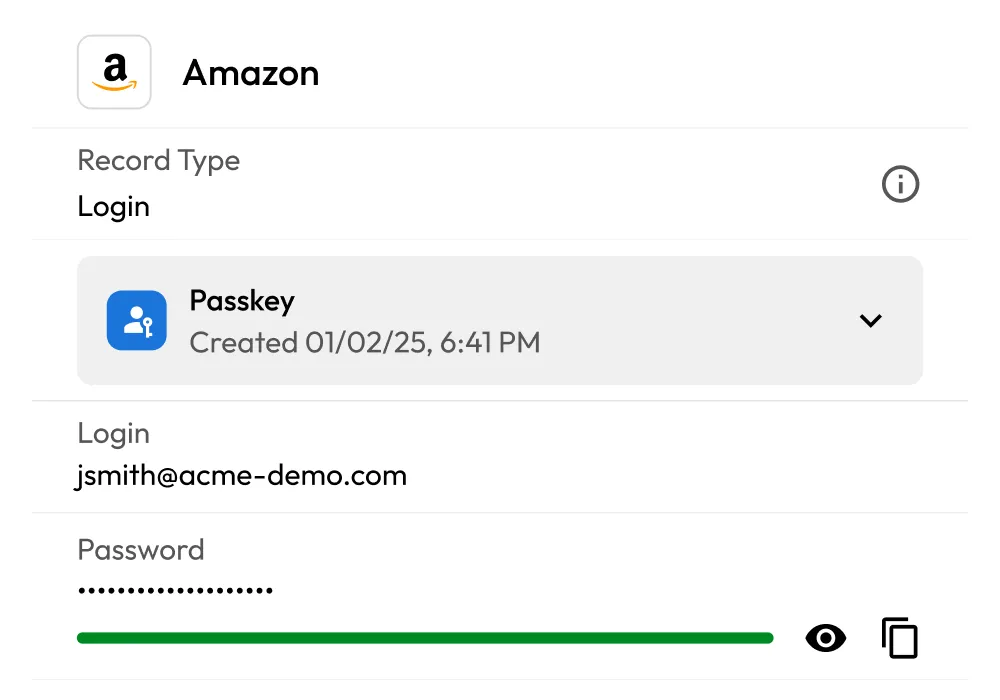
Keeper works seamlessly across all browsers, operating systems and devices, providing flexibility beyond a single ecosystem.
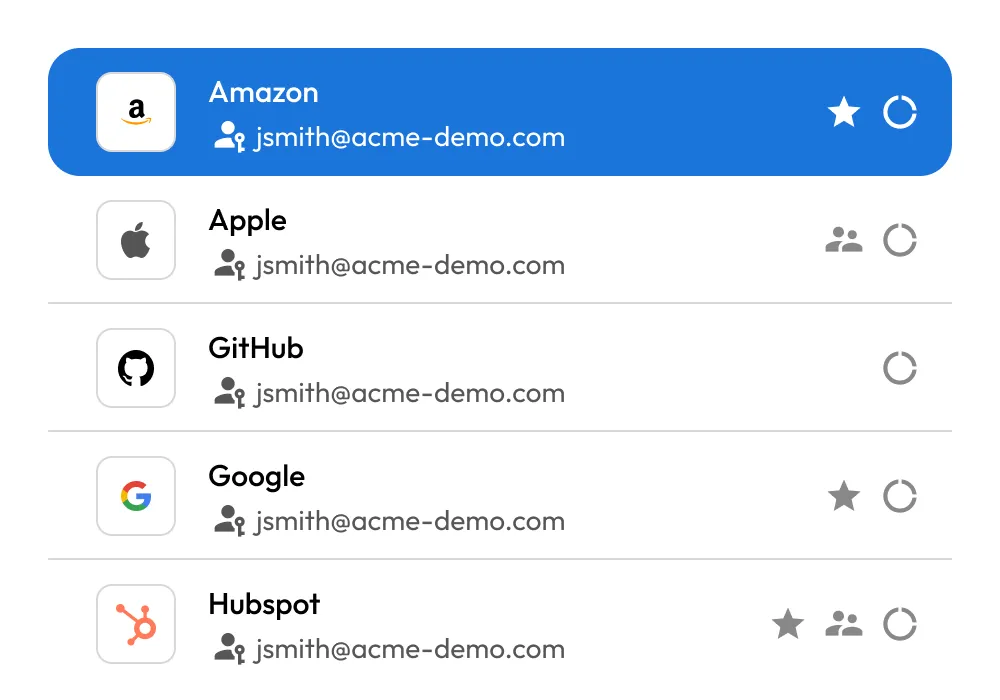
Securely store and manage all your passkeys in a zero-knowledge encrypted vault for easy access across devices and platforms.
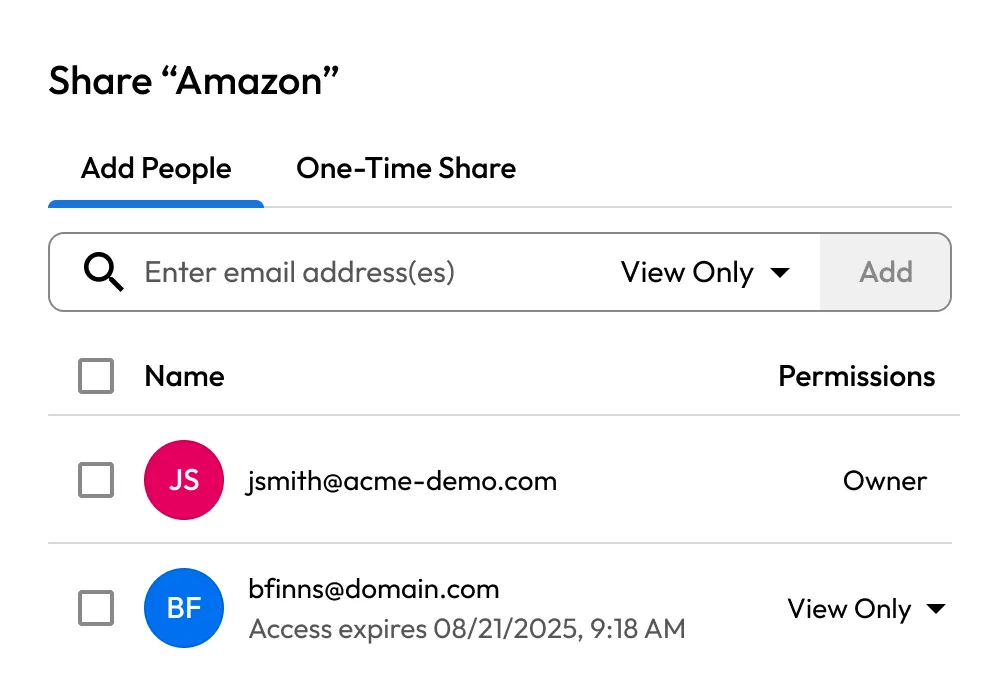
Securely share passkeys with other Keeper users through vault-to-vault sharing, with options to set expiration dates and revoke access anytime.
Keeper's secure cloud backup and multi-device sync ensure your passkeys are always accessible, even if you lose your device.
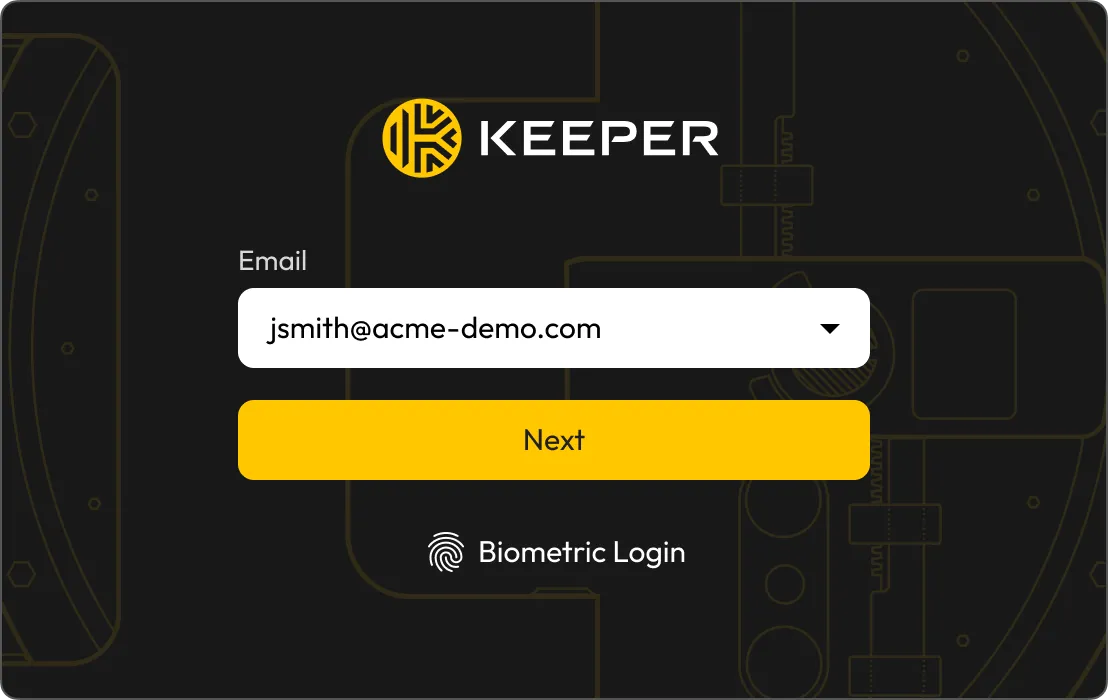
Log in to Keeper instantly using your fingerprint or face; no need to enter your master password or go through Single Sign-On (SSO). Biometric passkeys are supported on Chromium-based browsers like Chrome, Edge and Brave, offering a faster, more secure way to access your Keeper Vault.
Keeper supports passkey management on iOS and Android devices. When a supported site or app prompts you to create a passkey, Keeper automatically detects the request and saves the passkey to your vault.
Keeper handles the login seamlessly using Face ID, Touch ID or your device PIN - no master password or 2FA needed.
Passkeys created on mobile sync securely across your devices.

A passkey is a modern, passwordless authentication method that uses public key cryptography. Instead of a password, users authenticate with a cryptographic key pair: a public key stored by the service and a private key stored securely on the user's device or in a password manager. Authentication with passkeys typically involves biometrics (like fingerprint or facial recognition), a PIN or a swipe pattern.
Yes. Keeper can autofill passkeys across multiple platforms using KeeperFill®. Keeper supports passkey storage and autofill on iOS devices running iOS 17 or later, Android devices on Android 14 or later, through the Keeper browser extension and within the Keeper Web Vault.
When you visit a supported website or app, Keeper can create and save a passkey directly to your vault. On return visits, Keeper will either prompt you to sign in with your saved passkey, or you can select “Sign in with Passkey,” and Keeper will handle the rest automatically. Because your vault syncs across platforms, you can access and autofill your passkeys from any device where you're logged into Keeper.
Yes. You can securely share passkeys with other users in Keeper, just like you would share passwords or other records. Passkeys stored in your Keeper Vault can be shared using the same vault-to-vault sharing process. Keeper's zero-knowledge architecture ensures that all shared passkeys are encrypted with the recipient's public key, meaning only they can decrypt and use them.
Yes, Keeper supports passkeys on most devices, but setup steps depend on your platform. To start using passkeys, you'll need to activate them by following our setup guides:
Keeper's browser extensions also support passkeys on major desktop browsers, including Chrome, Firefox, Edge, Brave and Safari. For best results, make sure your operating system and hardware support biometric authentication (like Face ID, Touch ID or Windows Hello).
If you weren't saving your passkeys in Keeper and lost your device, you could lose access to those passkeys entirely. That means you might be locked out of accounts or forced to go through complex recovery processes.
With Keeper, your passkeys are securely stored in your encrypted vault. Even if you lose your device, you can restore access simply by logging into your Keeper account on a new device. Your vault and all your passkeys will sync instantly, keeping you connected without disruption.
Yes, you can store a passkey in the vault for either first factor (to replace the website password) or as a second factor (for 2FA). The use of the passkey really depends on how the website supports passkey authentication. Visit the security settings page of the website to activate either first-factor or second-factor authentication with a passkey.

You must accept cookies to use Live Chat.