
Wat kunt u met Keeper delen?
- Wachtwoorden
- Passkeys
- Dossiers en documenten
- Betalingsinformatie
- Twee-factor-codes
- Vertrouwelijke notities
- IT-documentatie
- SSH-sleutels en digitale certificaten
- Toegang tot geprivilegieerde accounts
Of u nu samenwerkt met een team of een huishouden beheert: met Keeper kunt u veilig, direct en zonder risico gegevens delen.
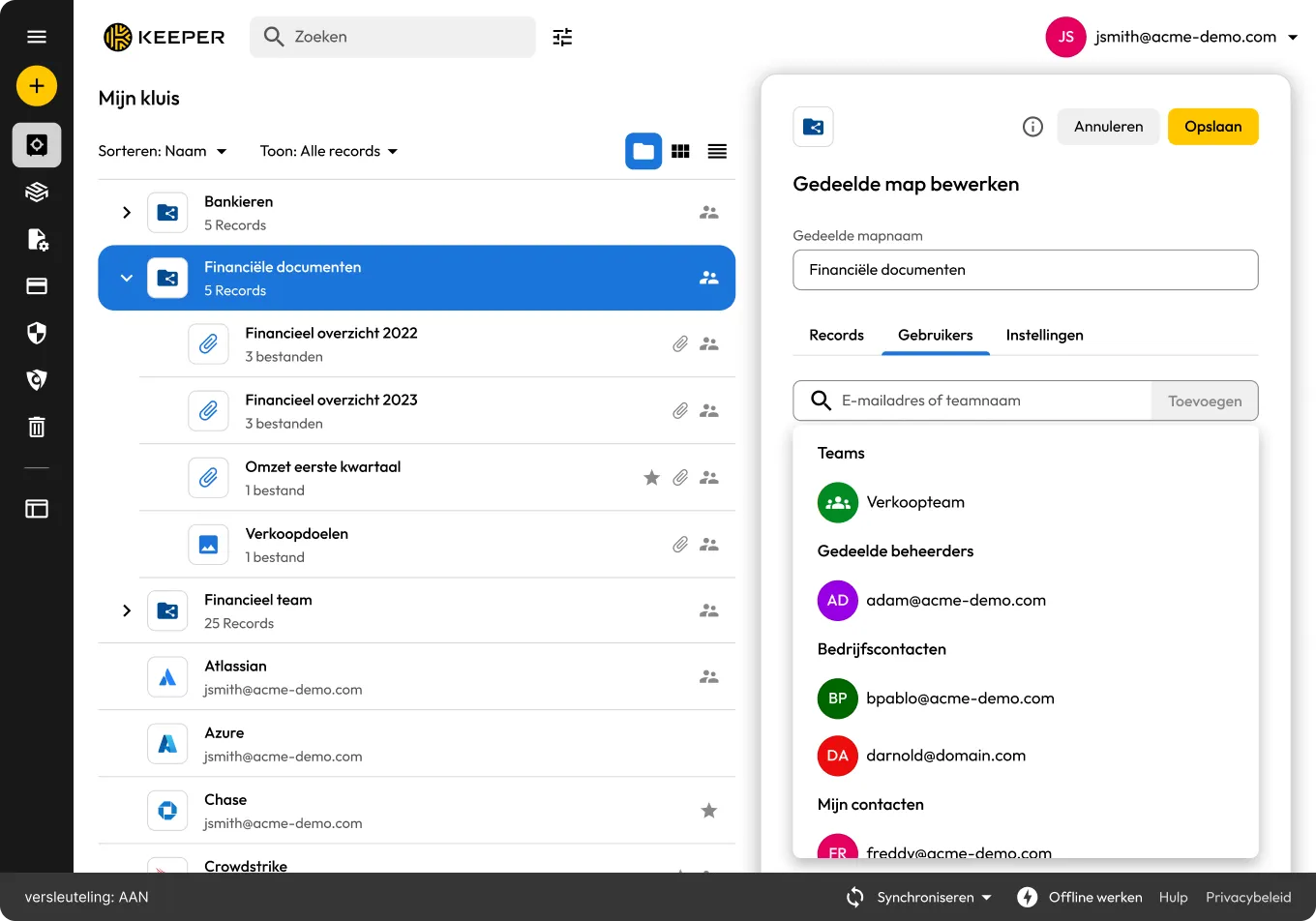

Deel direct met andere Keeper-gebruikers of gebruik Eenmalig delen om een veilige, tijdelijke link naar iedereen te sturen, zonder dat een account is vereist.

Beheer de machtigingen voor records en mappen via de kluis of via beleidsregels voor rolafdwingingen voor zakelijke huurders.

Records worden gedeeld met behulp van AES- en Elliptic Curve-cryptografie, zodat alleen de beoogde ontvanger de gegevens kan ontcijferen.

U heeft de volledige controle. Verwijder toegang met één klik of pas de machtigingen aan als dat nodig is.

Deel op een doorlopende basis records of mappen met specifieke gebruikers. De gedeelde items zijn actief totdat ze handmatig worden ingetrokken en zijn ideaal voor teams of personen die continu toegang moeten hebben tot gedeelde items.
Verleen tijdelijke toegang tot een record of map voor een bepaalde duur, waarna de toegang automatisch wordt ingetrokken. Het record kan, in tegenstelling tot zelfvernietigende gedeelde inhoud, meerdere malen worden bekeken binnen de toegestane periode.
Eenmalige, eenmalig bekijkbare links die onmiddellijk verlopen na toegang. Links voor eenmalig gebruik die slechts één keer kunnen worden bekeken en onmiddellijk verlopen nadat ze zijn geopend.
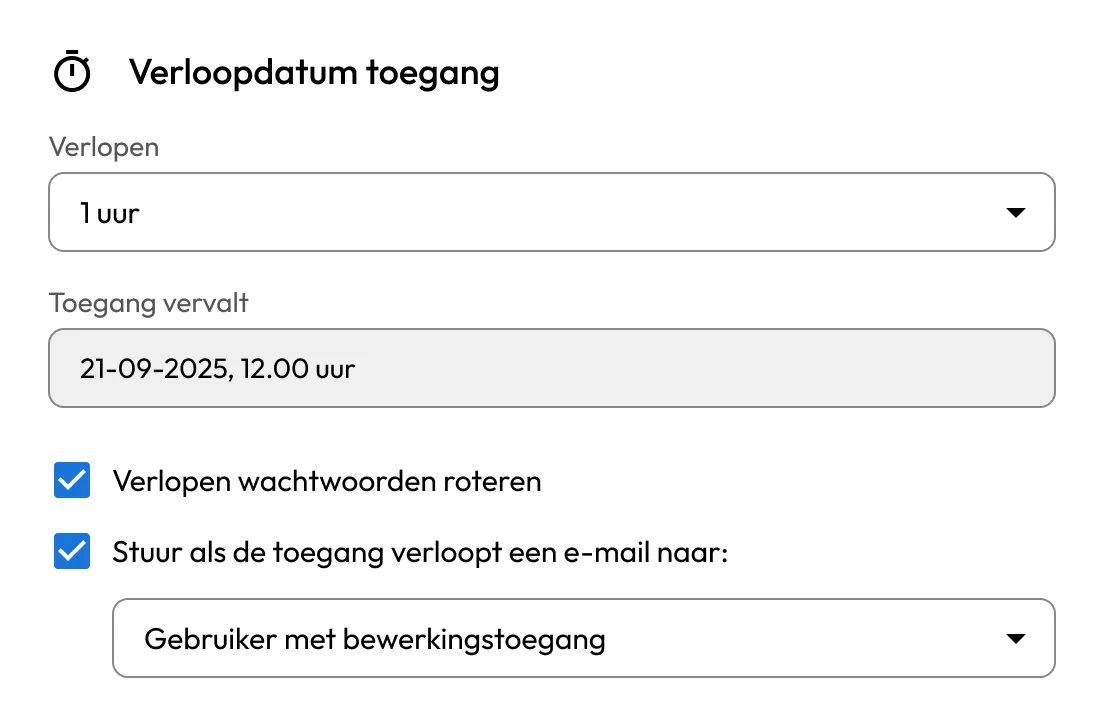
Verleen tijdelijke toegang tot gedeelde records of mappen, wat ideaal is voor leveranciers, aannemers en wisselende teams. Geprivilegieerde accounts kunnen automatisch worden gerouleerd nadat het delen is verlopen.
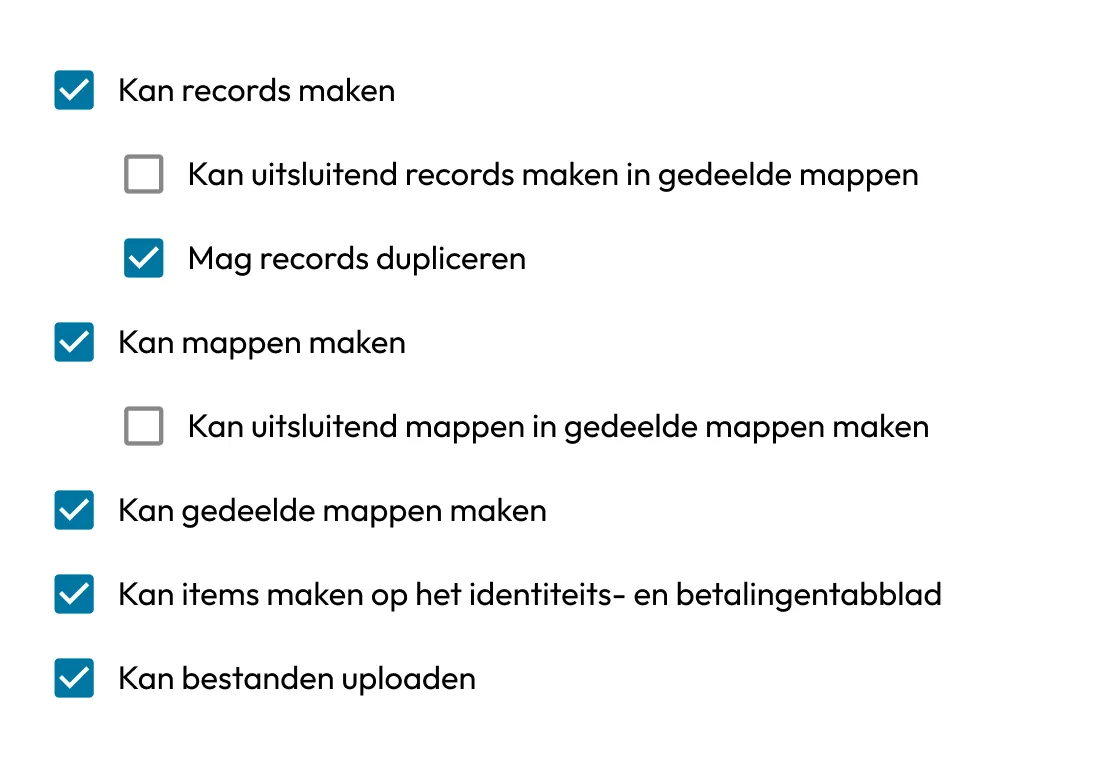
Het gedetailleerde machtigingssysteem biedt meer dan 80 machtigingen op kluis- en rollenniveau in 14 categorieën, met uitgebreide beleidscontroles en duidelijke audittrails — speciaal gebouwd voor governance en naleving van ondernemingen.
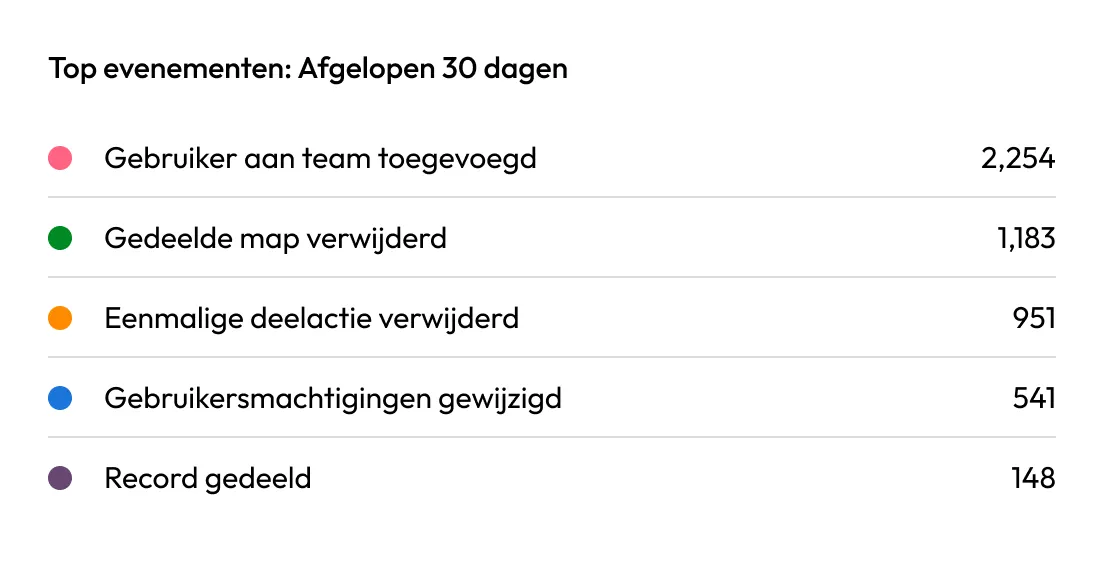
Ontvang meldingen wanneer records worden geopend of gewijzigd. Log gebeurtenissen naar SIEM's of ontvang meldingen via e-mail, Slack of Teams.
Selecteer ‘Beheerders delen’ om machtigingen te controleren, eigendom over te dragen en gedeelde gegevens binnen de hele organisatie te beheren.

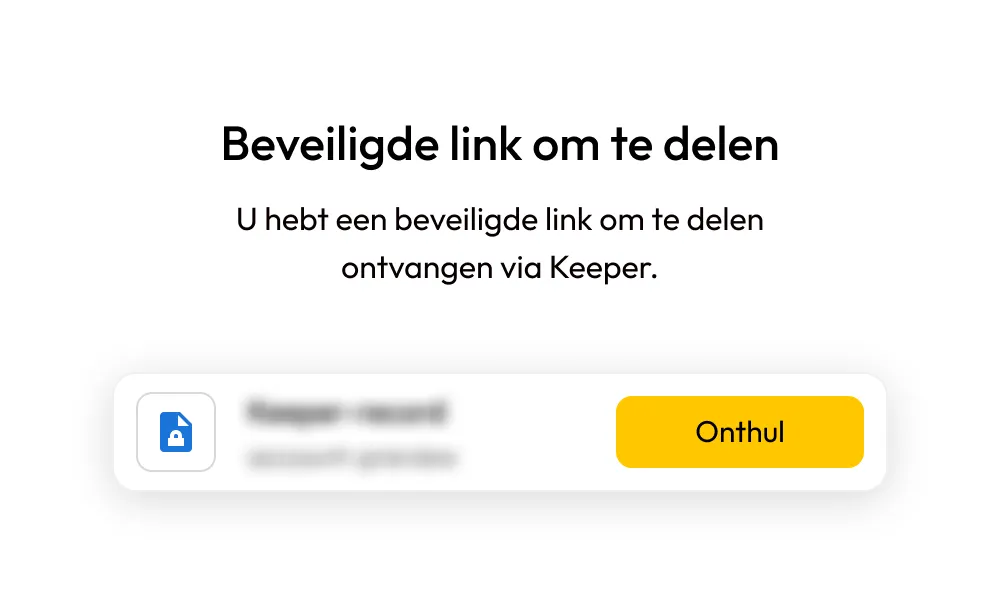
Stuur aanmeldingsgegevens, wifi-wachtwoorden of betalingsgegevens naar iedereen, zelfs als ze geen gebruik maken van Keeper.
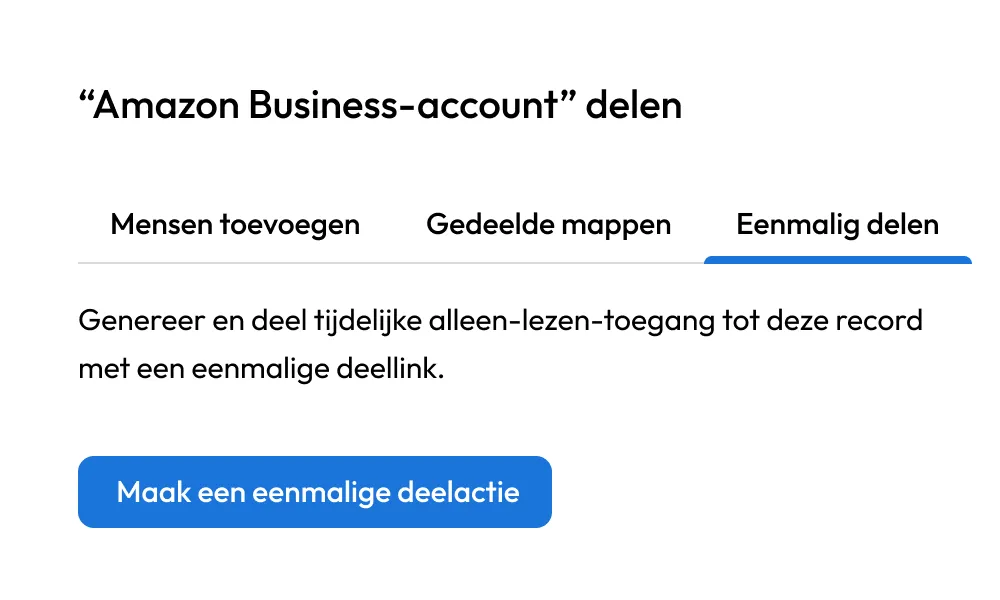
U bepaalt wie toegang heeft en voor hoelang en u kunt deze op elk gewenst moment wijzigen of intrekken.
Ja, met Eenmalig delen kunt u tijdelijke toegang tot een Keeper-record verlenen, zelfs als de ontvanger geen Keeper-account heeft.
Ja, u kunt passkeys delen met andere Keeper-gebruikers via hetzelfde mechanisme voor het delen tussen kluizen dat wordt gebruikt voor wachtwoorden en andere records. De ontvanger ontvangt de gedeelde versleutelde passkey en heeft toegang op basis van de door u ingestelde machtigingen.
Ja, u kunt gedetailleerde machtigingen instellen, zoals Alleen weergeven, Kan bewerken of Eigenaar wijzigen. U kunt de toegang ook op elk moment intrekken.
U kunt de toegang direct vanuit uw kluis intrekken. De ontvanger kan het gedeelde record niet langer bekijken of ermee werken. Dit doet u als volgt:
De functies voor delen verschillen per abonnement:
Gratis: Geen deelmogelijkheden; toegang is beperkt tot lokale opslag op één mobiel apparaat.
Onbeperkt en Gezin: Bevat het veilig delen van records, het delen tussen kluizen en eenmalig delen met gebruikers die geen Keeper-gebruikers zijn.
Zakelijk en Enterprise: Volledige mogelijkheden voor delen, waaronder delen in teamverband, gedeelde mappen, op rollen gebaseerde toegangsbeheer en eenmalig delen met externe gebruikers.
U kunt beide delen! Keeper ondersteunt gedeelde mappen, waardoor u meerdere records kunt organiseren en delen met groepen of individuen.
Ja, alle gegevens onderweg en in ruste worden beschermd met de zero-knowledge architectuur van Keeper en 256-bits AES-encryptie.
Ja, veilig delen met Keeper is beschikbaar via web-, desktop- en mobiele apps, zodat u overal veilig kunt delen.

U moet cookies inschakelen om Live Chat te kunnen gebruiken.