Feature: Offline Mode
Offline vault access anytime you need it.
Keeper's offline mode ensures your vault is always accessible, even without an internet connection or access to your Identity Provider (IdP).
Feature: Offline Mode
Keeper's offline mode ensures your vault is always accessible, even without an internet connection or access to your Identity Provider (IdP).
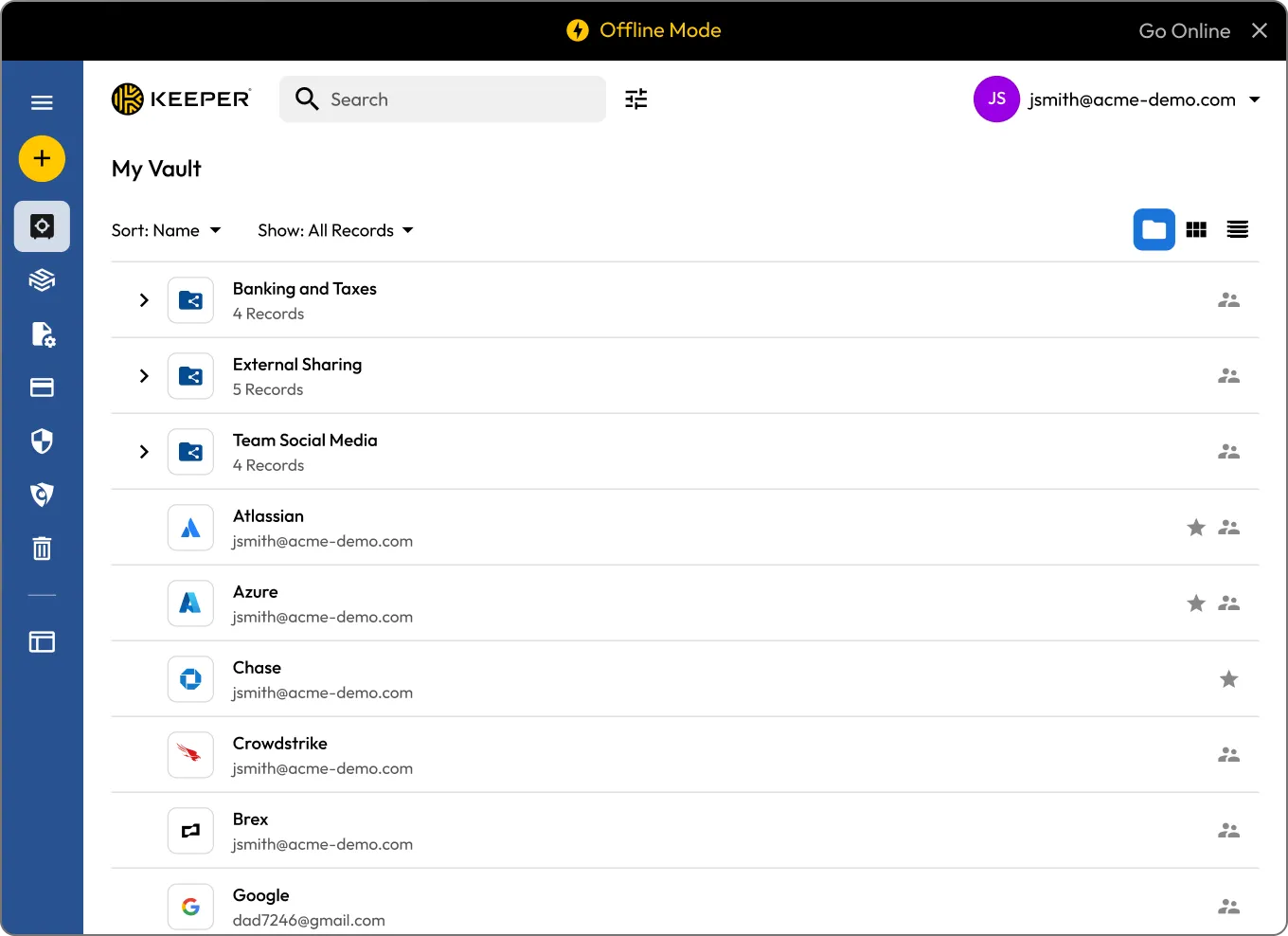
Offline mode allows you to access your Keeper Vault even when you're not connected to the internet or IdP. Whether you're on a flight, working from a remote location or your network goes down, you can still securely log in and view your records.
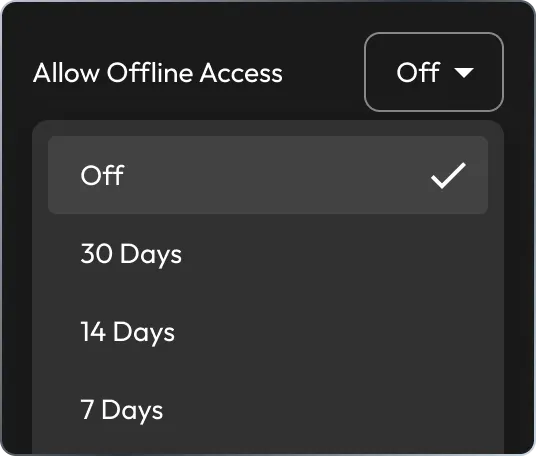
Enable Offline Access in your Keeper settings. For enterprise users, this option may need to be enabled by your Keeper Admin.
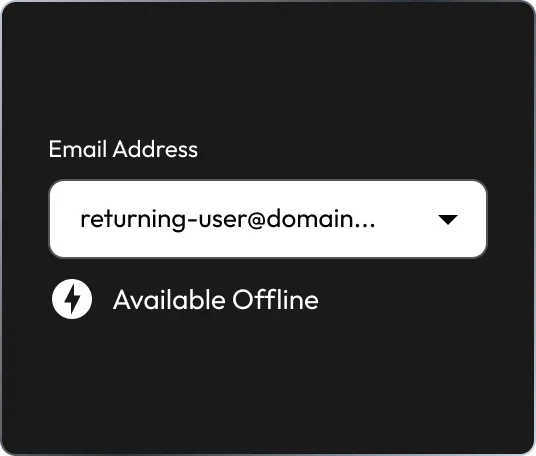
After enabling offline mode, log in once online to securely store an encrypted copy of your vault on the device.
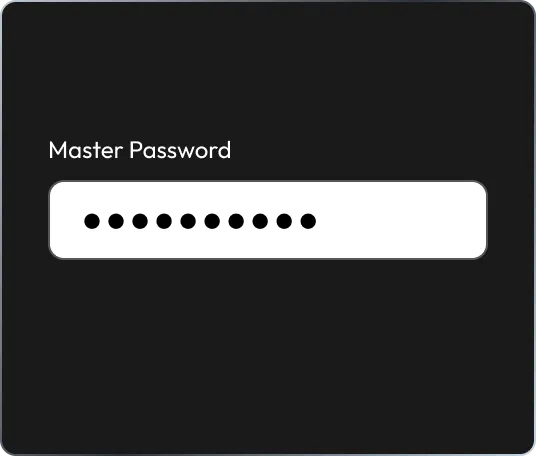
When offline, you can access your vault using your master password or biometric login.

Once back online, Keeper syncs any changes.
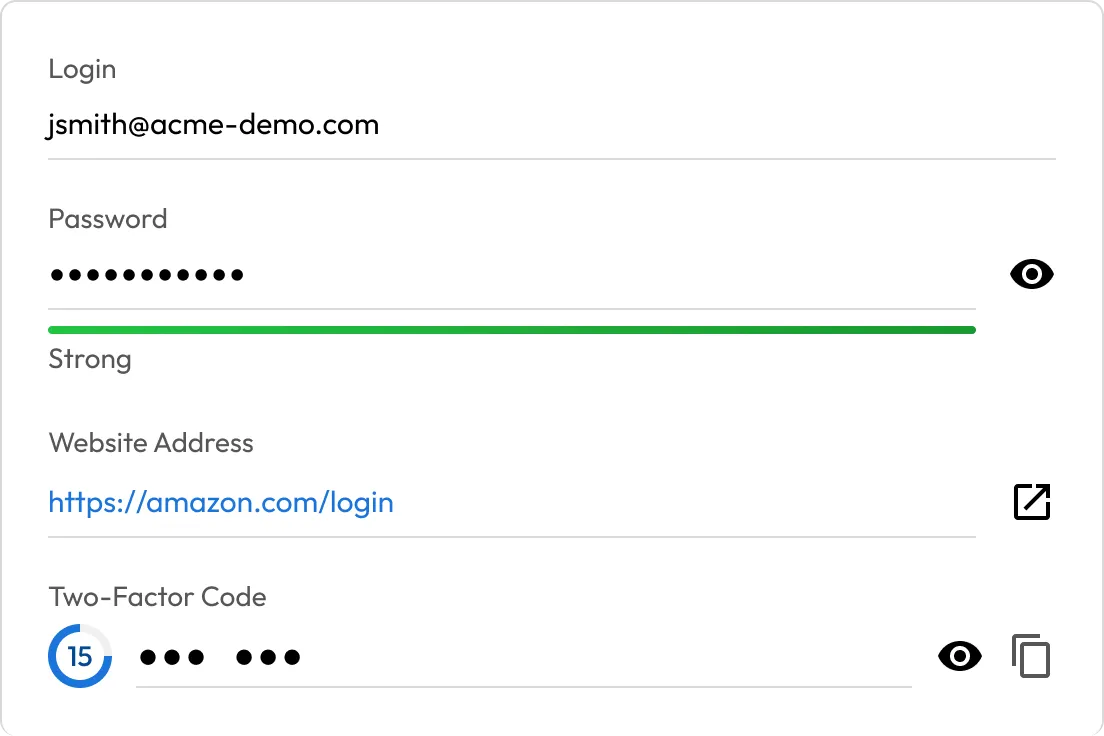
Access your passwords and secrets anytime, even without WiFi, VPN or cloud access. Whether traveling or working in a secure facility, you'll never be locked out.
Ensure employees can retrieve credentials during network disruptions or IdP downtime, without waiting on IT or compromising security.
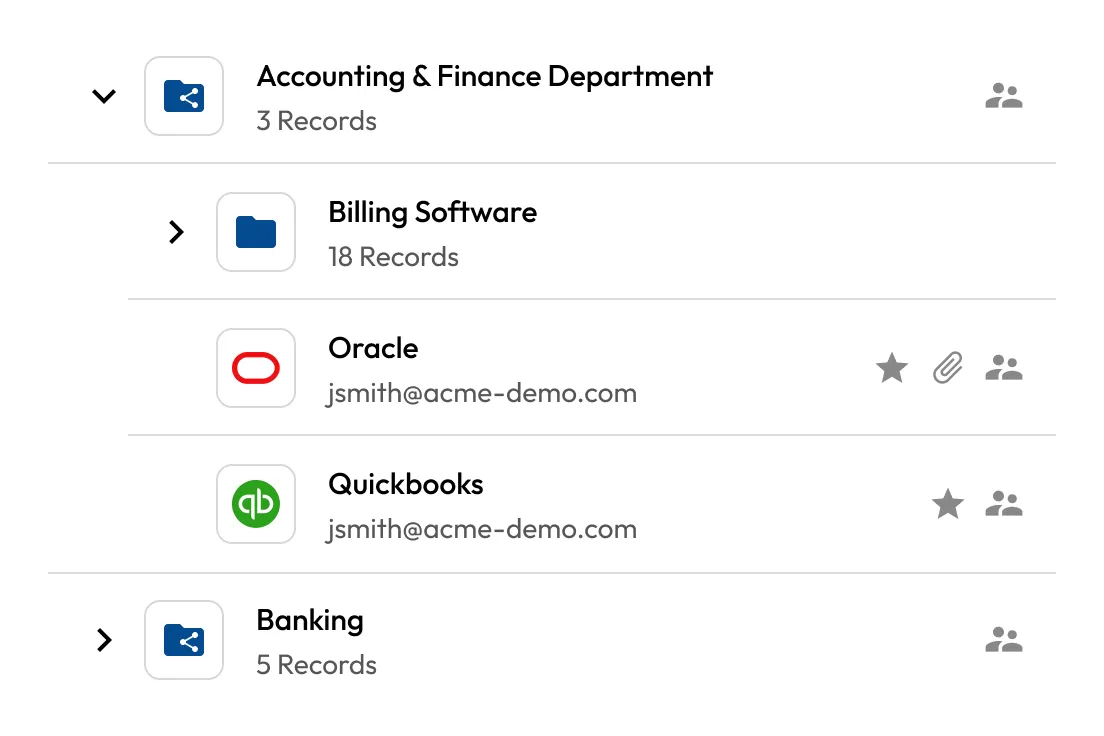
Vault data stays encrypted and device-local until unlocked by the user. Online or offline, only the user can decrypt their vault.
Avoid delays caused by SSO failures or remote access issues. Offline mode acts as a built-in failover, keeping users on task and systems accessible.
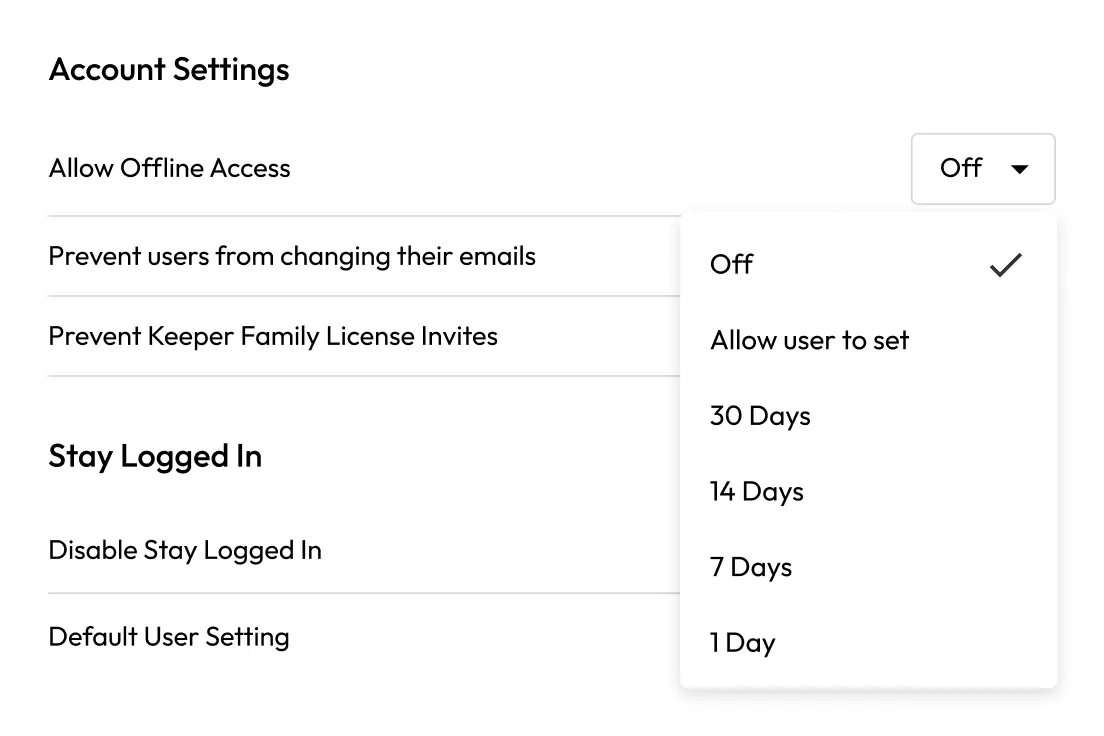
IT admins can manage who uses offline mode, how they authenticate and when sessions expire.
Go to your Security settings in Keeper and enable Allow Offline Access. If you're part of a business account, this feature may need to be enabled by your Keeper administrator.
With offline mode enabled, you can:
Some features may be limited depending on the platform, but core vault access remains fully functional offline.
Yes, any updates made while offline are synced automatically when your device reconnects to the internet.
Yes, but users must set up a master password as a fallback login method. This allows access when the identity provider isn't reachable.
Yes. In Keeper's business and enterprise plans, administrators have full control over offline mode. They can:
Two-Factor Authentication (2FA) is not required in offline mode, since access occurs entirely on the user's local device.

You must accept cookies to use Live Chat.