
 Cybersecurity



Malicious cyber activity targeted remote monitoring and control technology at over 30 community water systems across Minnesota in late July 2026, and water cyber attacks were
5 min read
Published on November 24, 2025
Keeper Security offers leading cybersecurity solutions, including password management and Privileged Access Management (PAM), trusted by millions of users and over 100,000 organizations to protect their credentials and enhance their security. Keeper securely stores and autofills your login credentials, payment details and other sensitive information, ensuring you are the only one who can access your Keeper Vault.
The main difference between the Keeper Browser Extension and KeeperFill® is their function: the Keeper Browser Extension grants you access to your vault within a browser, whereas KeeperFill is the autofill engine that securely autofills your credentials across trusted URLs and apps on any device.
Continue reading to learn more about the Keeper Browser Extension and KeeperFill, including their main differences.
What is the Keeper Browser Extension?
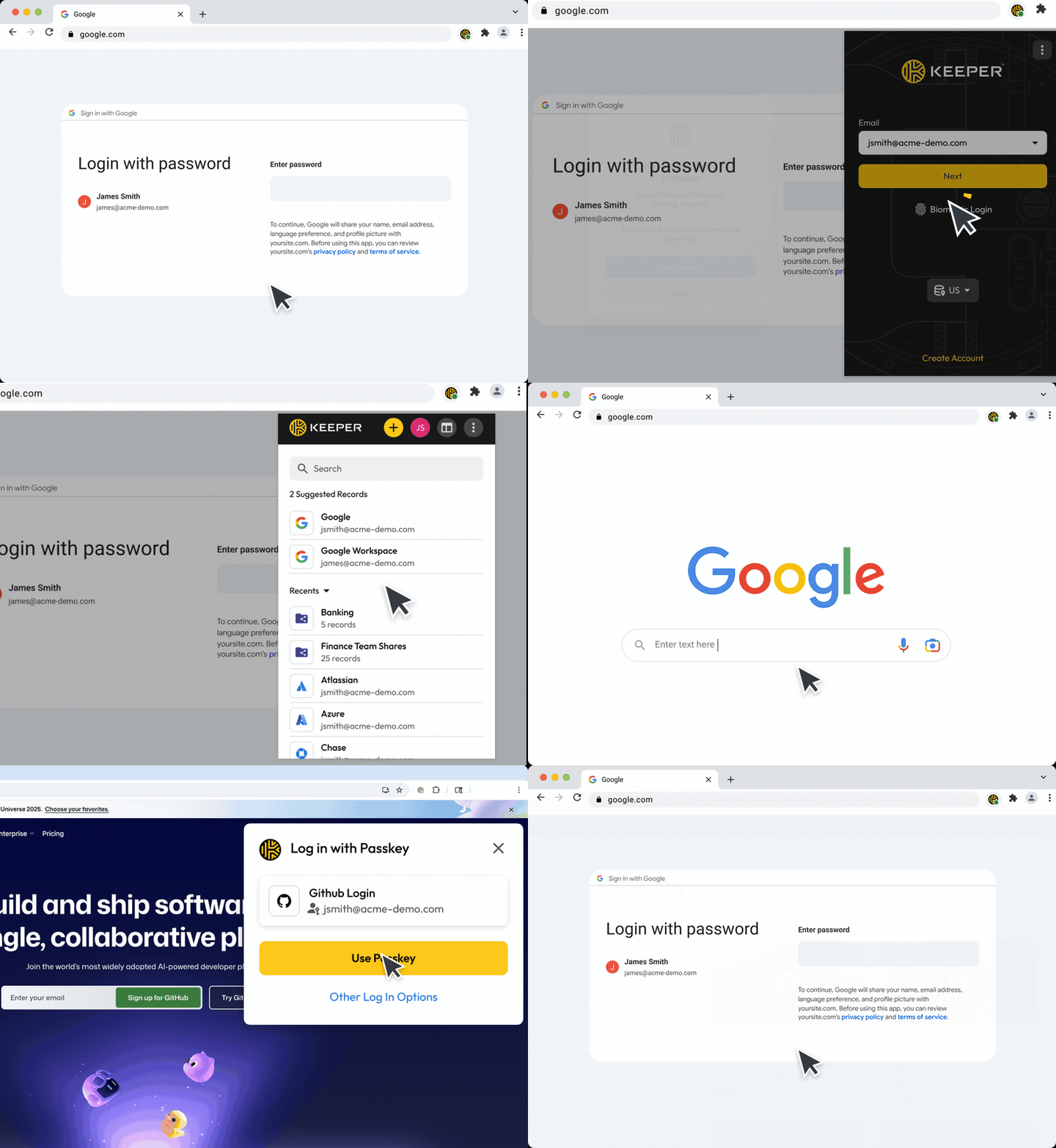
The Keeper Browser Extension protects every login within your preferred browser. It delivers secure, zero-knowledge password management and seamless autofill capabilities, allowing you to log in to existing accounts, create new ones and manage your credentials in real time on your preferred browser. The Keeper Browser Extension is compatible with all major browsers, including Chrome, Safari, Firefox, Edge, Brave and Opera, to provide a secure experience across devices. With the Keeper Browser Extension, you can unlock your vault with biometric authentication, generate strong, unique passwords instantly and autofill passkeys.
Benefits of the Keeper Browser Extension
Besides simplifying the login process, the Keeper Browser Extension offers a variety of benefits to enhance your browsing experience and overall security. Here are some of its main benefits:
- Zero-knowledge security: The Keeper Browser Extension is built on a zero-knowledge security architecture, so all encryption and decryption occur locally on your device. Your credentials and sensitive information are never exposed to the browser, third parties or even Keeper. Since Keeper uses AES 256-bit encryption and PBKDF2 key derivation, none of your vault data is stored in plaintext or transmitted over unsecured channels.
- Real-time vault syncing: Any change you make to a record in your browser extension is instantly synced to your Keeper Vault across all browsers and devices, ensuring you always have access to your most updated set of credentials. By logging in or out of your Keeper Web Vault, you are automatically logged in or out of the browser extension, keeping your sessions secure.
- Cross-browser compatibility: The Keeper Browser Extension works across all major browsers, including Chrome, Safari, Firefox, Edge, Brave and Opera.
- Password, passphrase and passkey management: Generate and store strong, unique passwords and passphrases using Keeper’s built-in generators, and securely store passkeys for passwordless login on supported websites. Keeper automatically identifies and fills passkey prompts, allowing for a seamless login experience.
- Integrated MFA support: The Keeper Browser Extension can be used to scan and save Two-Factor Authentication (2FA) codes directly into your Keeper Vault. Keeper can automatically fill your 2FA code along with your username and password, eliminating the hassle of switching between apps or devices to log in.
What is KeeperFill?
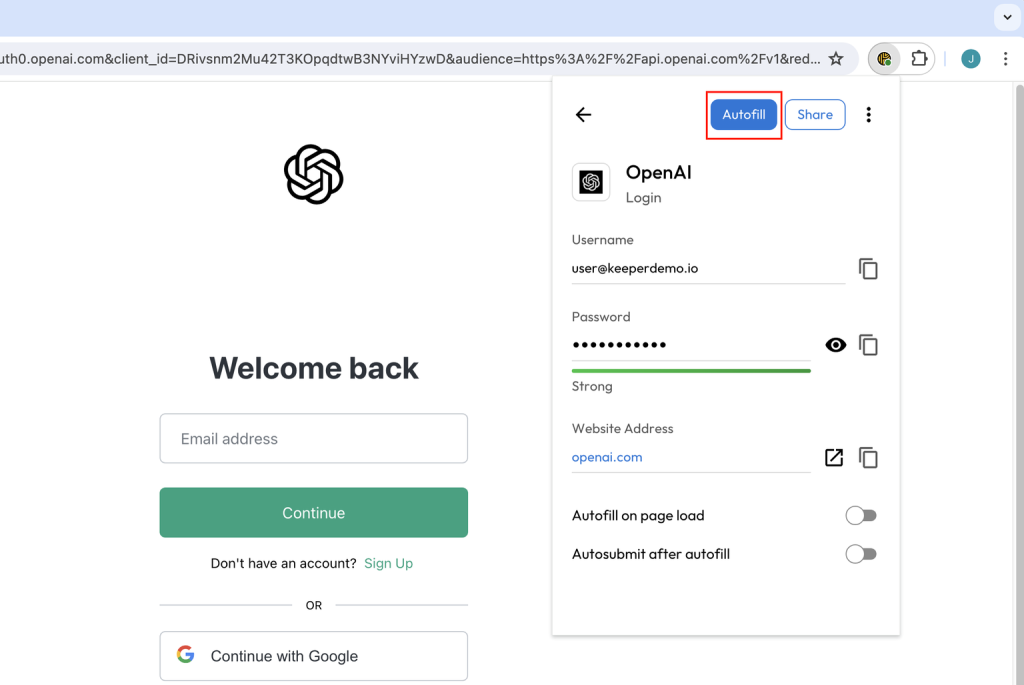
KeeperFill is Keeper’s autofill engine that streamlines how you log in to websites and apps across your browsers and devices. KeeperFill is integrated throughout Keeper’s ecosystem, working across the Keeper Browser Extension, mobile apps and desktop apps. No matter which browser or device you use, KeeperFill will only autofill a record when the website’s URL exactly matches the URL saved in your vault. Since KeeperFill solely relies on records stored in your vault and verifies the URL before filling any information, Keeper never enters your information on malicious or spoofed websites, protecting you from phishing attacks and credential theft attempts.
Key features of KeeperFill
KeeperFill lets you autofill your credentials in your browser and mobile/desktop apps while keeping your data private and secure. Here are KeeperFill’s main features:
- Autofills credentials: KeeperFill automatically fills in the correct login credentials for websites and apps only if the record has the matching URL in your vault. This ensures that your information is only filled on trusted sites that match the contents of your vault, protecting you from spoofing attacks.
- Saves new logins instantly: When you create a new account, KeeperFill prompts you to save those credentials to your vault. By following the prompt, KeeperFill saves you time and securely stores your new credentials.
- Works across multiple browsers and devices: Beyond major browsers, KeeperFill can also be used across your devices through Keeper’s mobile apps and desktop apps for consistent login experiences.
Main differences between the Keeper Browser Extension and KeeperFill
Although they work closely together, the Keeper Browser Extension and KeeperFill have different purposes within Keeper’s ecosystem. The Keeper Browser Extension is used to access and manage your Keeper Vault from within a browser, while KeeperFill is the autofill technology that runs inside the browser extension.
| Features | Keeper Browser Extension | KeeperFill |
|---|---|---|
| Purpose | Access, view and manage your Keeper Vault directly from a browser | Autofill engine that fills credentials, payment details, passkeys, 2FA codes and more |
| Where it works | Within supported web browsers | Across the browser extension, mobile apps and desktop apps |
| Installation process | Installed from your preferred browser’s web store | Built into the Keeper ecosystem and activated automatically when the browser extension, mobile app or desktop app is installed |
| Common use cases | Used to access your vault, create/edit records and generate passwords | Used to autofill logins, save new passwords and easily sign in across devices |
How the Keeper Browser Extension and KeeperFill work together
The Keeper Browser Extension lets you access and manage your Keeper Vault from any major browser, and KeeperFill is a built-in autofill engine that securely fills your sensitive data into trusted websites or apps. Because KeeperFill is integrated directly into the Keeper Browser Extension, you receive both strong password management and AI-powered autofill in a unified platform. Using these two features together lets you both quickly generate, save and organize your credentials, and autofill them on legitimate websites, helping you stay secure while streamlining your login process.
Secure your credentials with Keeper
Both the Keeper Browser Extension and KeeperFill give you the strongest combination of protection and ease of use for your login experience. With zero-knowledge encryption securing all data in your vault, and an autofill engine that prevents phishing and spoofing, Keeper enhances both your login experience and overall online security.
Start your free trial of Keeper Password Manager and download the Keeper Browser Extension today to ensure your data is protected everywhere you browse.
Frequently asked questions
Is KeeperFill safe?
Yes, KeeperFill is safe because it operates under a zero-knowledge security framework, meaning only you can access your vault data. KeeperFill autofills information only on domains that match saved records, helping prevent phishing and spoofing attacks.
Can I use KeeperFill without the browser extension?
Yes, you can use KeeperFill without the browser extension only on Keeper’s mobile and desktop apps. In browsers, KeeperFill works through the Keeper Browser Extension, so the extension must be installed to autofill on websites. However, KeeperFill is built directly into Keeper’s mobile apps, allowing you to use it even if you haven’t installed the browser extension.
How do I enable KeeperFill on mobile devices?
To enable KeeperFill on your mobile device, turn on Keeper’s autofill service in your device settings. Here’s how:
– On iOS devices, go to Settings, General, Autofill & Passwords and toggle on autofill from Keeper.
– On Android devices, go to Settings, Passwords & accounts and change your autofill service to Keeper. Once enabled, KeeperFill will automatically recognize login pages and securely fill your saved credentials across saved websites and apps.

