Log in to Keeper with a fingerprint, face or PIN
Biometric login with passkeys unlocks your Keeper Vault using the same biometric or PIN that unlocks the device, so you don't need to type your master password or a two-factor code to sign in.

Keeper Security 5 Jahre in Folge als Leader im Bereich Passwortverwaltung ausgezeichnet
Mehr erfahrenBiometric login with passkeys unlocks your Keeper Vault using the same biometric or PIN that unlocks the device, so you don't need to type your master password or a two-factor code to sign in.
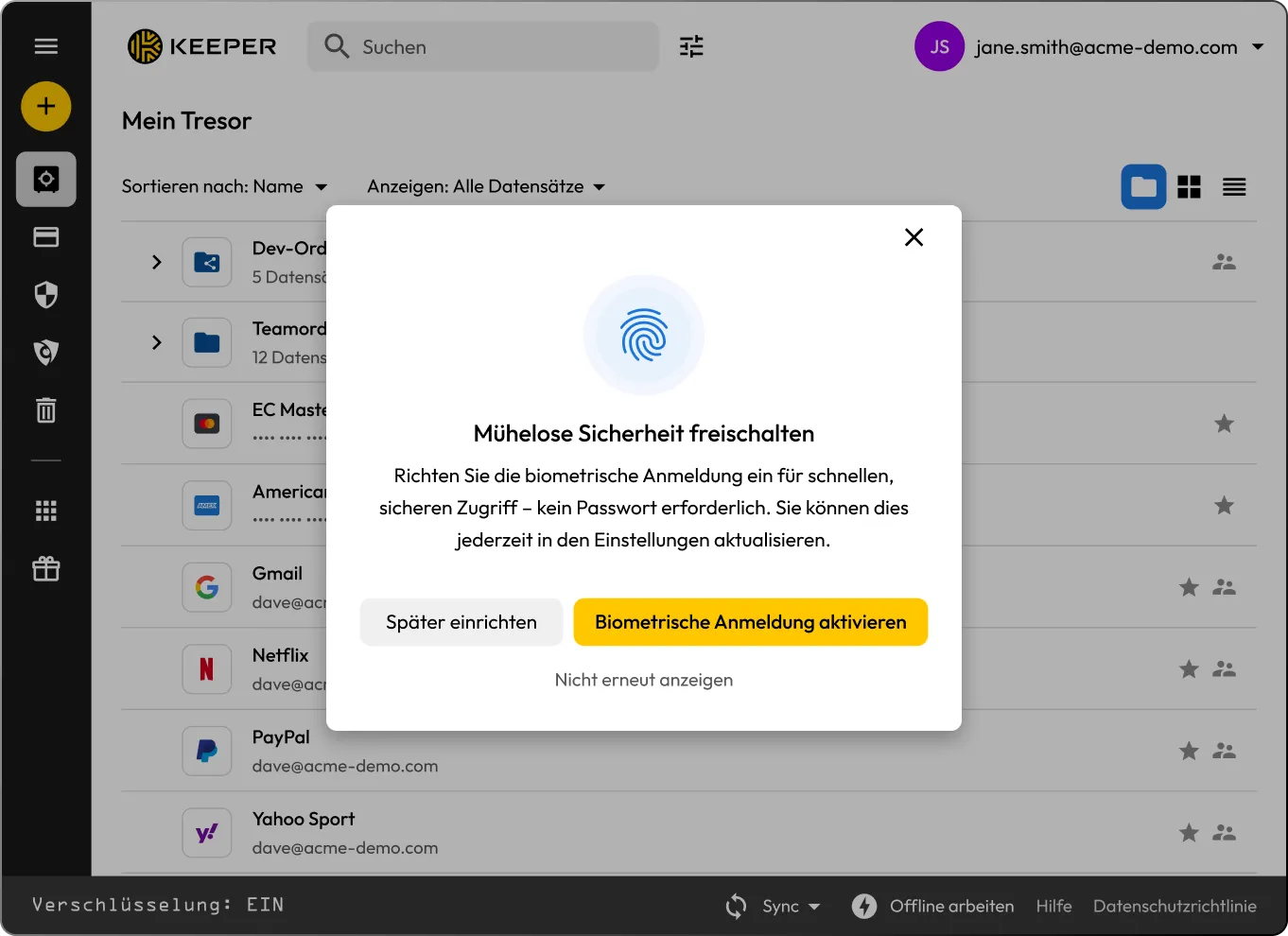
Keeper's biometric login is built on the FIDO2/WebAuthn standard using platform-bound passkeys. It plugs into the device's own security hardware and Keeper's zero-knowledge encryption model.
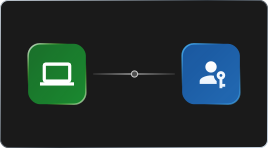
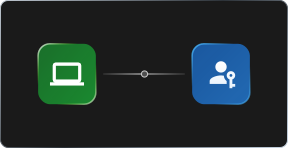
Registration creates a unique key pair, stored in the device's secure hardware, such as the TPM on Windows or Secure Enclave on Apple devices. The private key never leaves the device, so there's no shared secret to intercept.
Keeper never stores or receives fingerprint or face data. It uses the operating system's biometric check—Windows Hello or Touch ID—to confirm the user's identity. Biometric data isn't sent to Keeper or shared with anyone else.
A fingerprint, face or PIN unlocks the private key locally, and Keeper verifies the user through FIDO2 WebAuthn. The passkey uses the device and a live check to cover both the master password or Single Sign-On (SSO) and the 2FA step.


Login uses challenge-response, so no password or one-time code crosses the network. Decryption happens locally under Keeper's zero-knowledge model. With no password or code in the flow, there's nothing to phish, steal or replay.
The Keeper Vault unlocks with a fingerprint, face or device PIN, so there's nothing to type, no master password to remember and no SSO redirect to wait on.
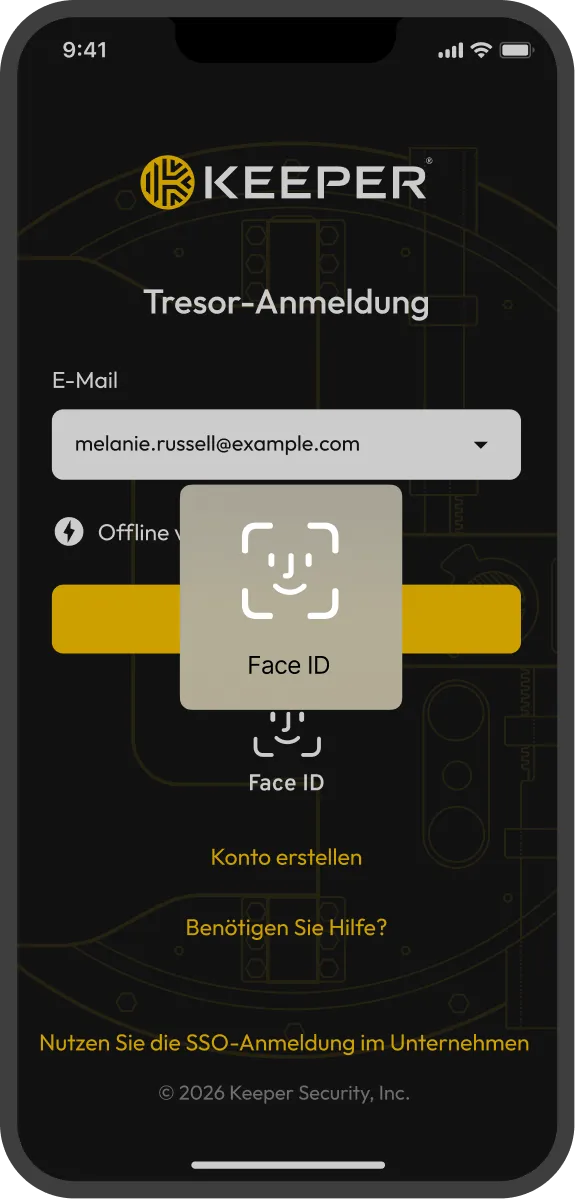
Keeper never stores or processes fingerprint or face data. It relies on the biometric check already built into the operating system, Windows Hello or Touch ID, to confirm the user locally. Nothing biometric is ever sent to Keeper or exposed to anyone else.
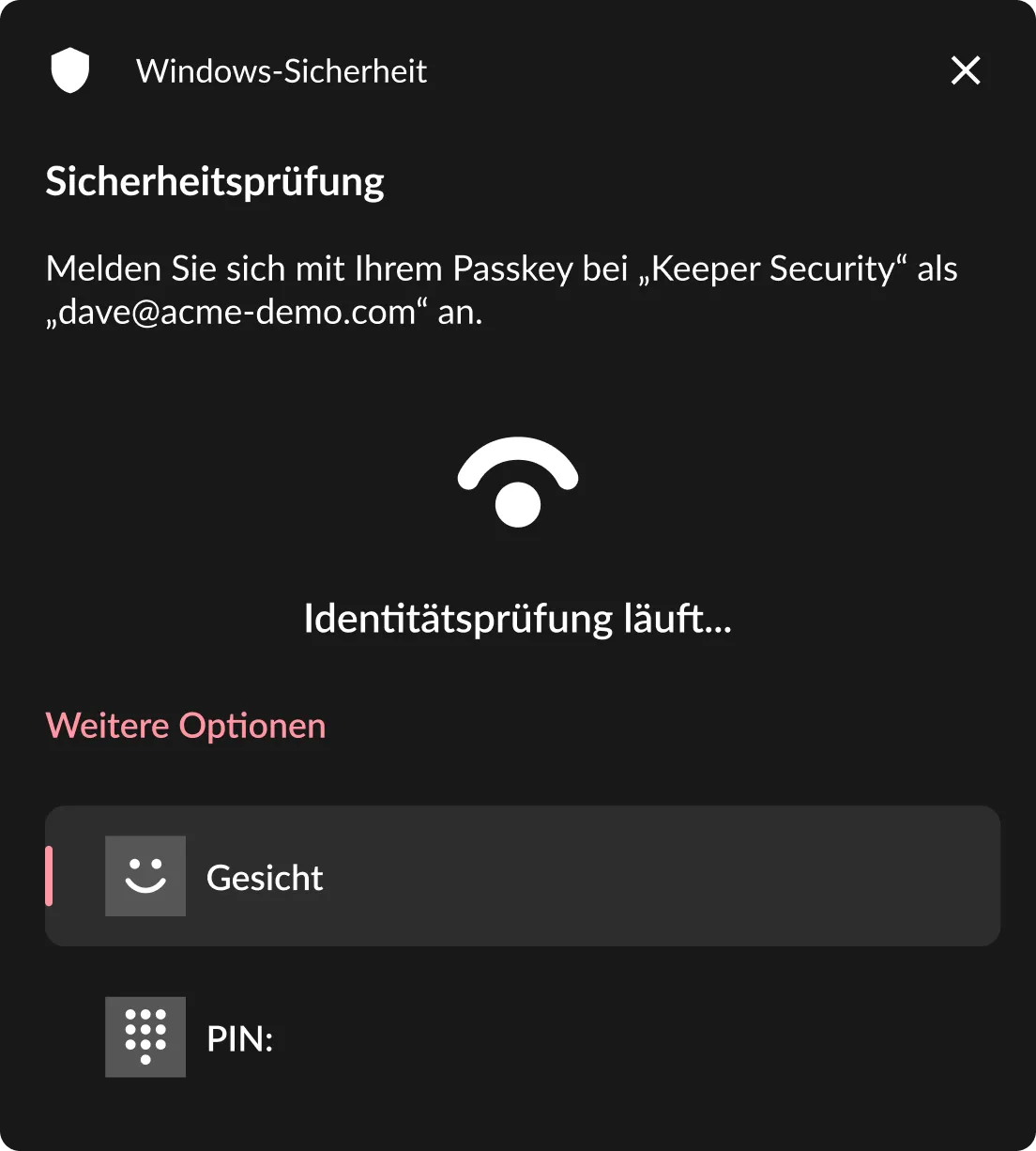
A passkey is device-bound and cryptographically unique. There's no shared secret to steal, phish or reuse, which shuts down credential stuffing and phishing attacks targeting passwords and one-time codes. It's authentication built to the FIDO2 standard.
The browser extension and CLI authenticate directly with the Keeper cloud over FIDO2 WebAuthn. There's no separate companion app to install, which keeps setup simple and the attack surface small.
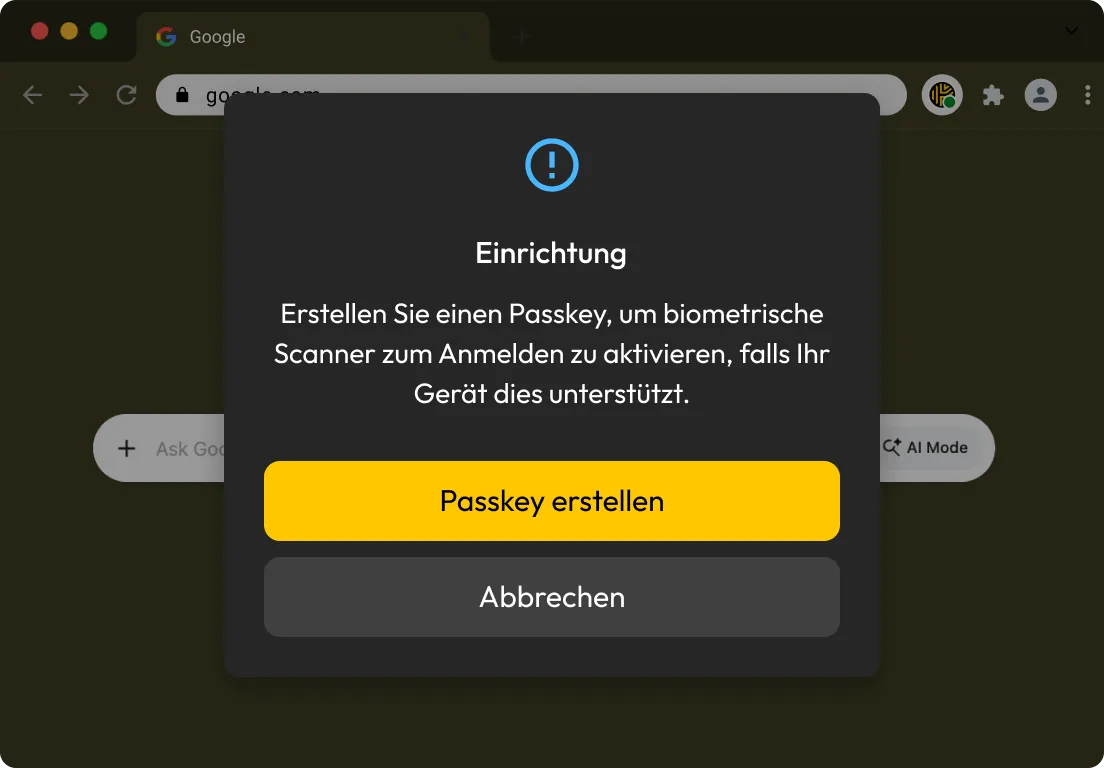
A single Keeper account can register a passkey on more than one platform. It can hold a passkey in iCloud Keychain, Windows Hello and Google Chrome at the same time. Add one on each device in use and pick whichever is in front of you.


Biometric login with a passkey is available on Chromium-based browsers including Chrome, Edge and Brave. After registration, "Biometric Login" appears on the front door screen, with the biometric check handled by Windows Hello on Windows or Touch ID on Mac. Master password and SSO login options remain available.

Biometric login with a passkey works in the Keeper Web Vault. Once a passkey is registered, "Biometric Login" appears on the sign-in screen, with the biometric check handled by Windows Hello on Windows or Touch ID on Mac. Master password and SSO options stay available.

Commander supports native biometric login with a passkey, unlocking the vault with Touch ID or Windows Hello directly in the terminal. No companion desktop app is needed. The biometric register command sets it up. Note that persistent login takes precedence, so if a device already has persistent login enabled, biometric credentials aren't required at login.
Keeper's biometric login with passkeys is a way to unlock the Keeper Vault using a FIDO2/WebAuthn passkey protected by a device's biometrics or PIN, instead of a typed master password. The passkey is a device-bound credential that replaces both the login password and the two-factor step.
No, Keeper never stores, processes or transmits fingerprint or face data. It relies on the operating system's own biometric check, Windows Hello or Touch ID, to confirm the user locally, so the biometric itself never leaves the device.
Keeper's biometric login with passkeys works on Chromium-based browsers such as Chrome and Edge, in the Keeper Web Vault and through the Keeper Commander CLI. The biometric check integrates with Windows Hello on Windows and Apple Touch ID on Mac.
Yes, Keeper Administrators control biometric login with passkeys through role-based enforcement policies in the Admin Console, under Roles > Enforcement Policies > Login Settings. Admins can enable or disable it for any role, so access stays in the organization's hands.
Sie müssen Cookies aktivieren, um den Live-Chat zu nutzen.