Feature: Nested Shared Folders

Organize and share records with granular access control

Keeper's Nested Shared Folders let you organize records the way your teams actually work, with role-based permissions at every level. Access is inherited from the parent folder by default, or fine-tuned for specific subfolders and individual records. Permissions can be assigned to users or teams and provisioned automatically at enterprise scale through directory mapping and SCIM.
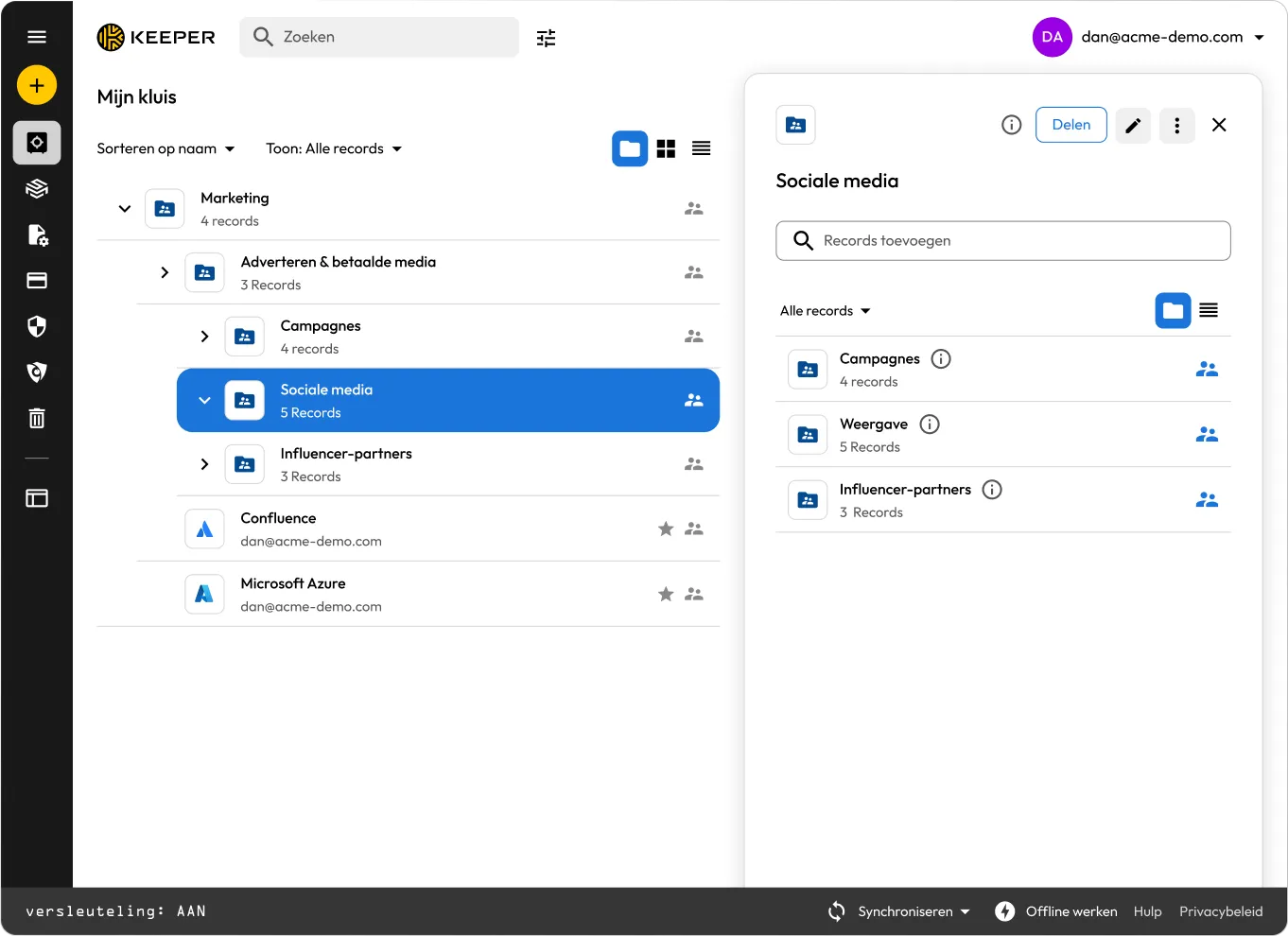
Keeper vault showing a Social Media shared folder with nested folders and shared records.

How Nested Shared Folders work in Keeper

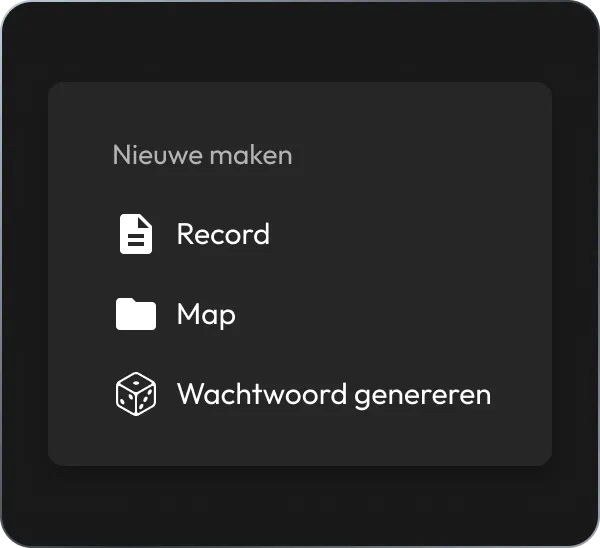
Keeper vault Create New menu showing options to create a record, folder or generate a password.

1. Create a folder

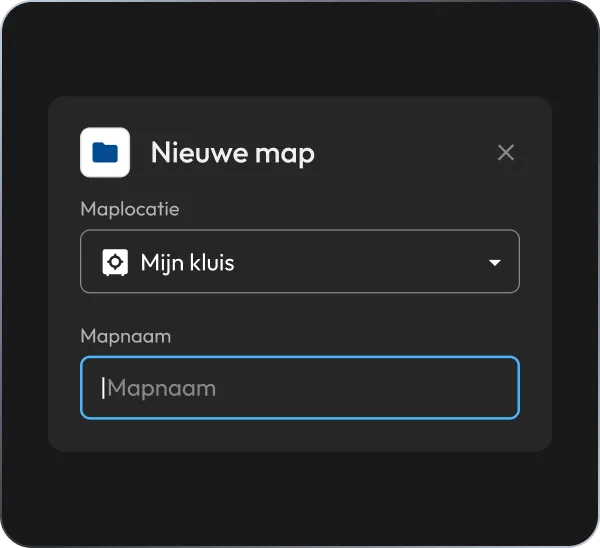
In the Keeper Vault, click Create New, then Folder. Pick a location and name it. Sharing comes after the folder exists, so you can set up the structure first and share it when you're ready.

Keeper vault New Folder dialog showing folder location and name fields.

2. Build out subfolders

Add subfolders inside any folder, up to five levels deep. Each subfolder can inherit permissions from its parent or define its own.

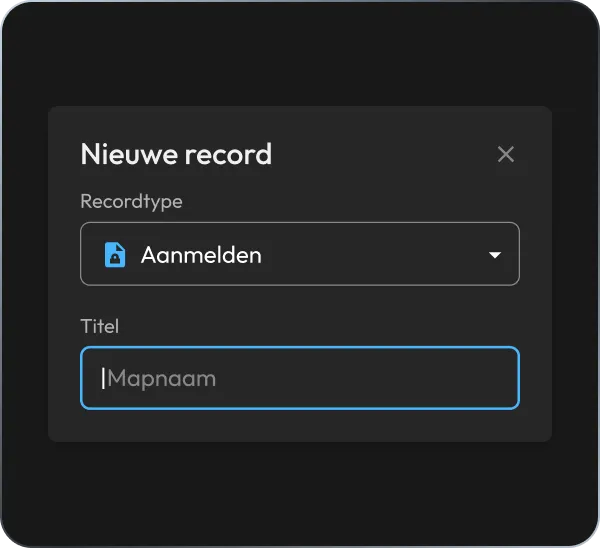
Keeper vault New Record dialog showing record type selection and title field.

3. Add records

Add records to a folder from the vault. A record can live in more than one folder at once.

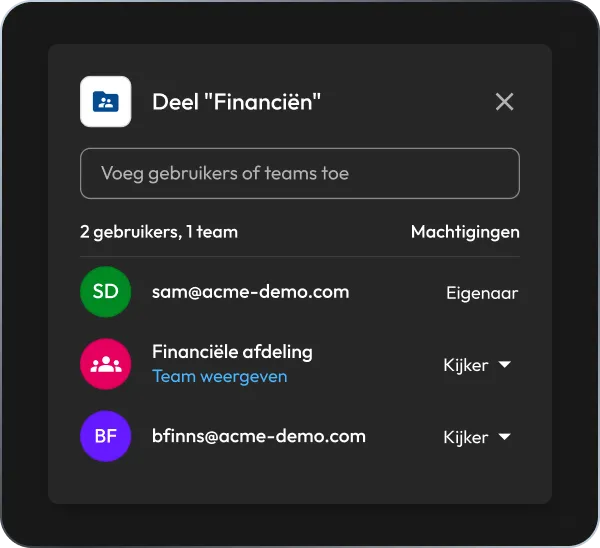
Keeper vault sharing dialog showing access permissions for the Finance folder, including users and a team.

4. Share and Assign Role

Select a folder or record, click the Share button, then add users or teams and assign role permission levels. Set expiration dates or revoke access at any time.

Granular control at every level

Structure that mirrors your org

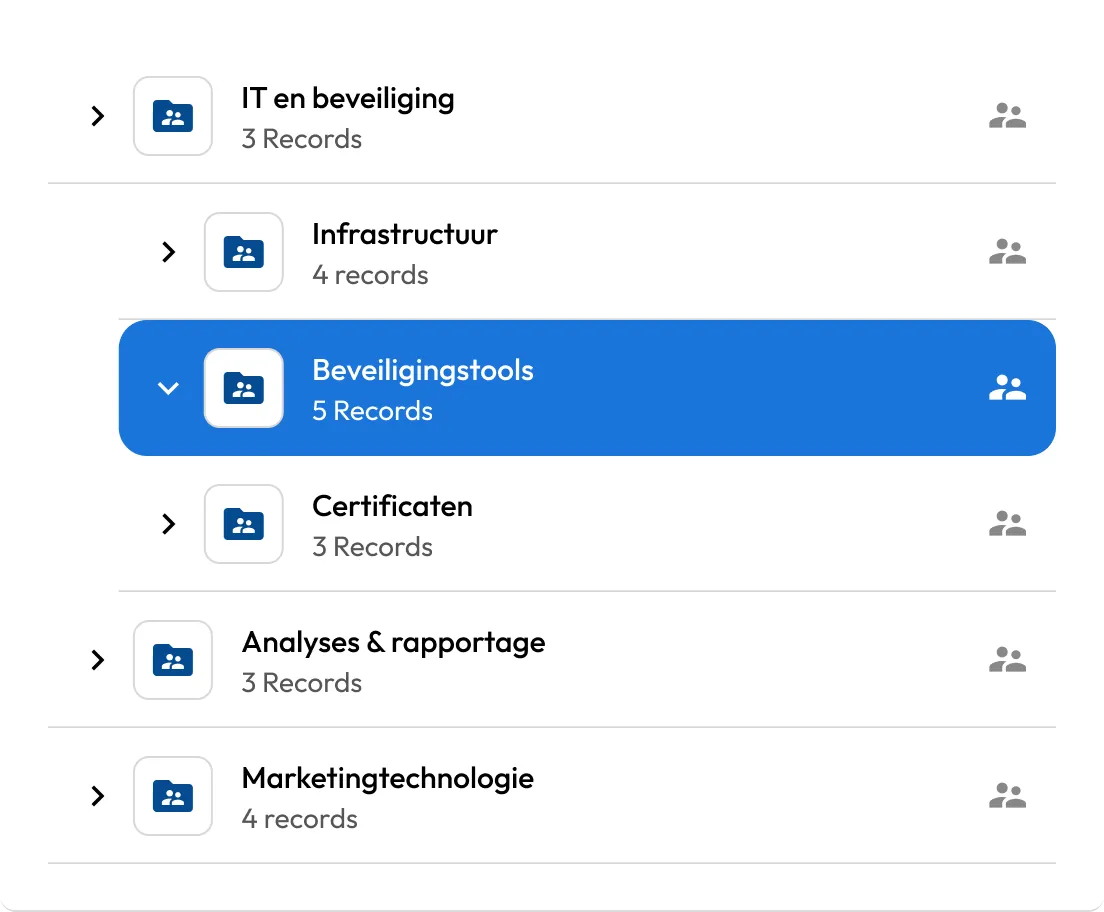
Build folders and subfolders around teams, projects or clients. Sharing and permissions are managed independently at each level, and the structure scales as the team grows.

Keeper vault showing shared folders with Security Tools selected and record counts displayed.

Flexible permission assignment

Permissions can be inherited from a parent folder, assigned directly to a folder or assigned directly to an individual record. Set one broad policy at the top and make precise exceptions anywhere below it.

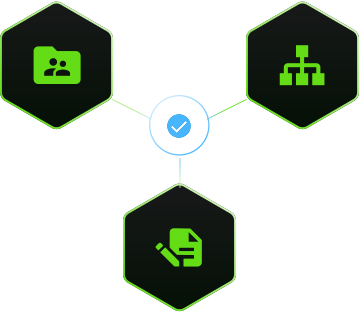
Keeper graphic showing shared folders, team structure and record permissions connected by a checkmark.

Role-based Access Controls

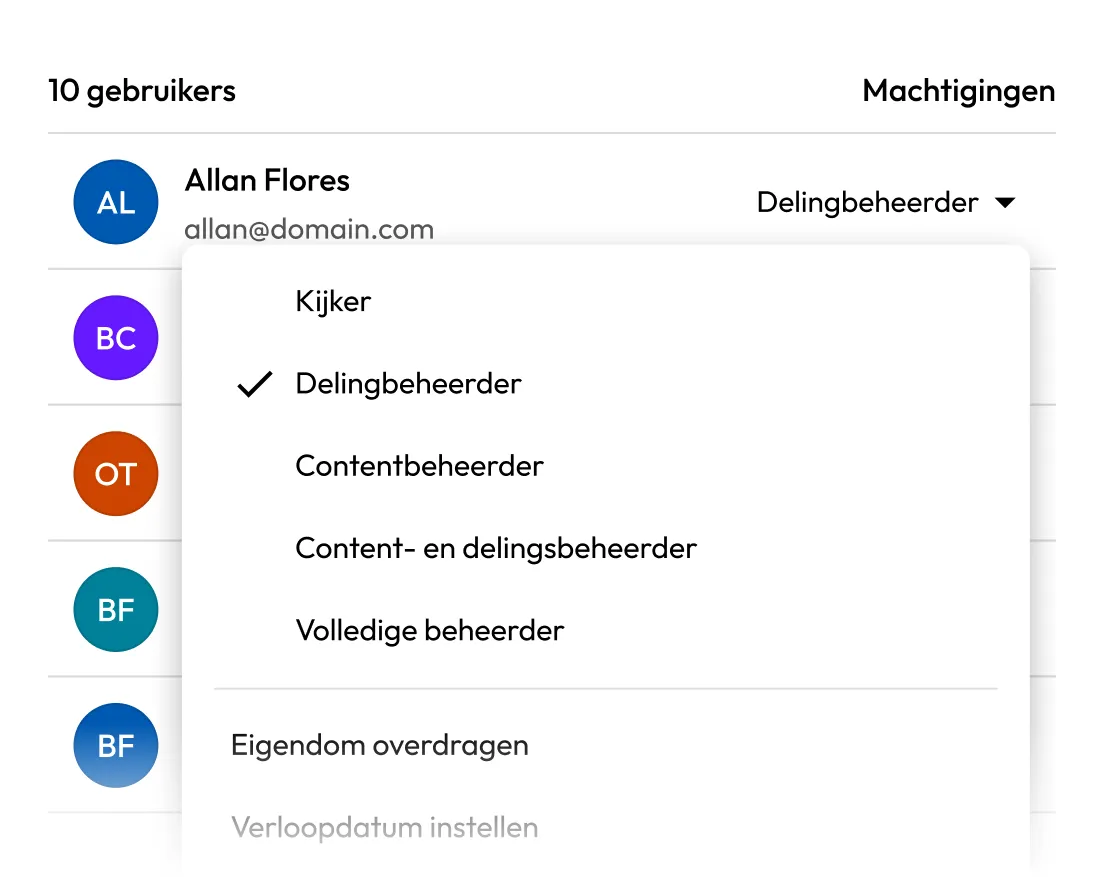
Folder roles provide a simple and scalable method of assigning permissions to any managed resource in the vault. Roles cover both folder contents and user management. Roles include Viewer, Share Manager, Content Manager, Content and Share Manager, and Full Manager. Each role maps to a clear set of abilities, so people get exactly the access their role requires and nothing more.

Keeper sharing permissions menu showing user access levels, including Viewer, Share Manager, Content Manager and Full Manager.

Share with applications, not just people

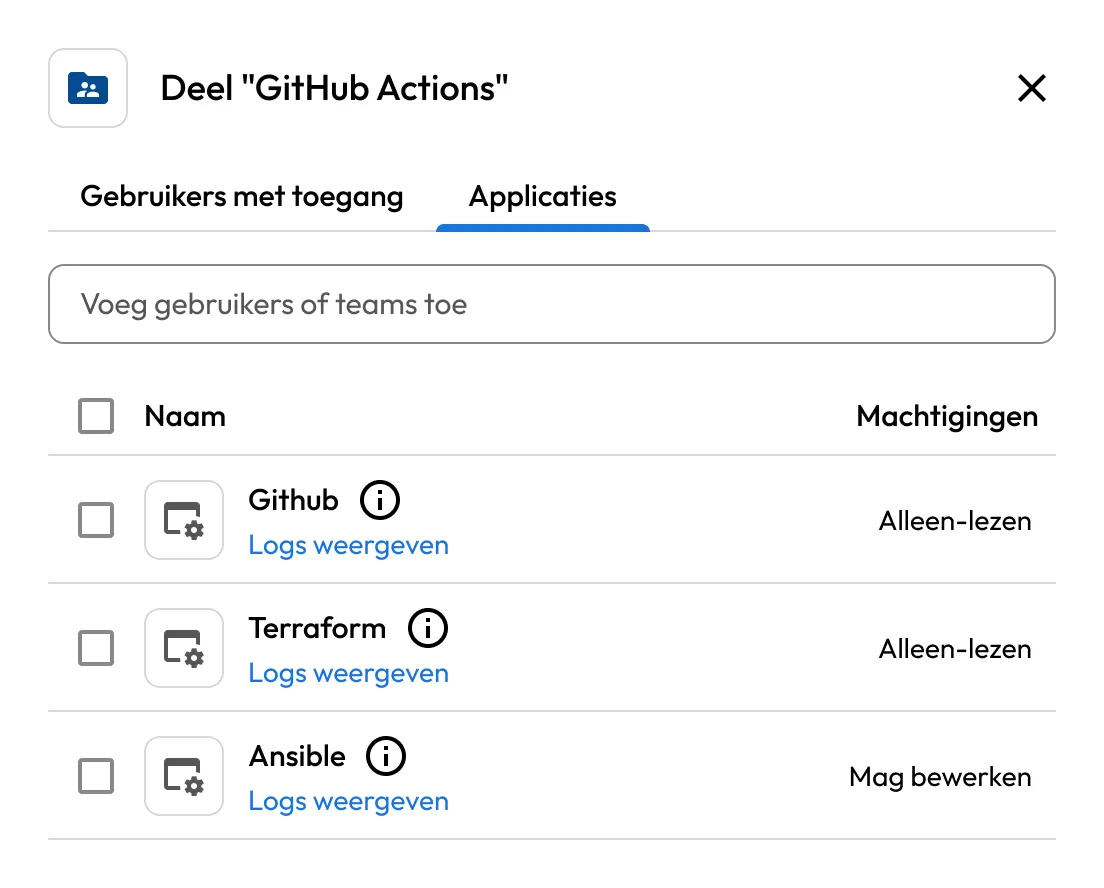
External workloads such as CI/CD pipelines, cloud services and automations access secrets through Keeper Secrets Manager applications, which can be assigned to any Nested Shared Folder with Can Edit or Read Only permissions.

Keeper sharing dialog showing GitHub Actions application access and permissions for GitHub, Terraform and Ansible.

Manage access at scale

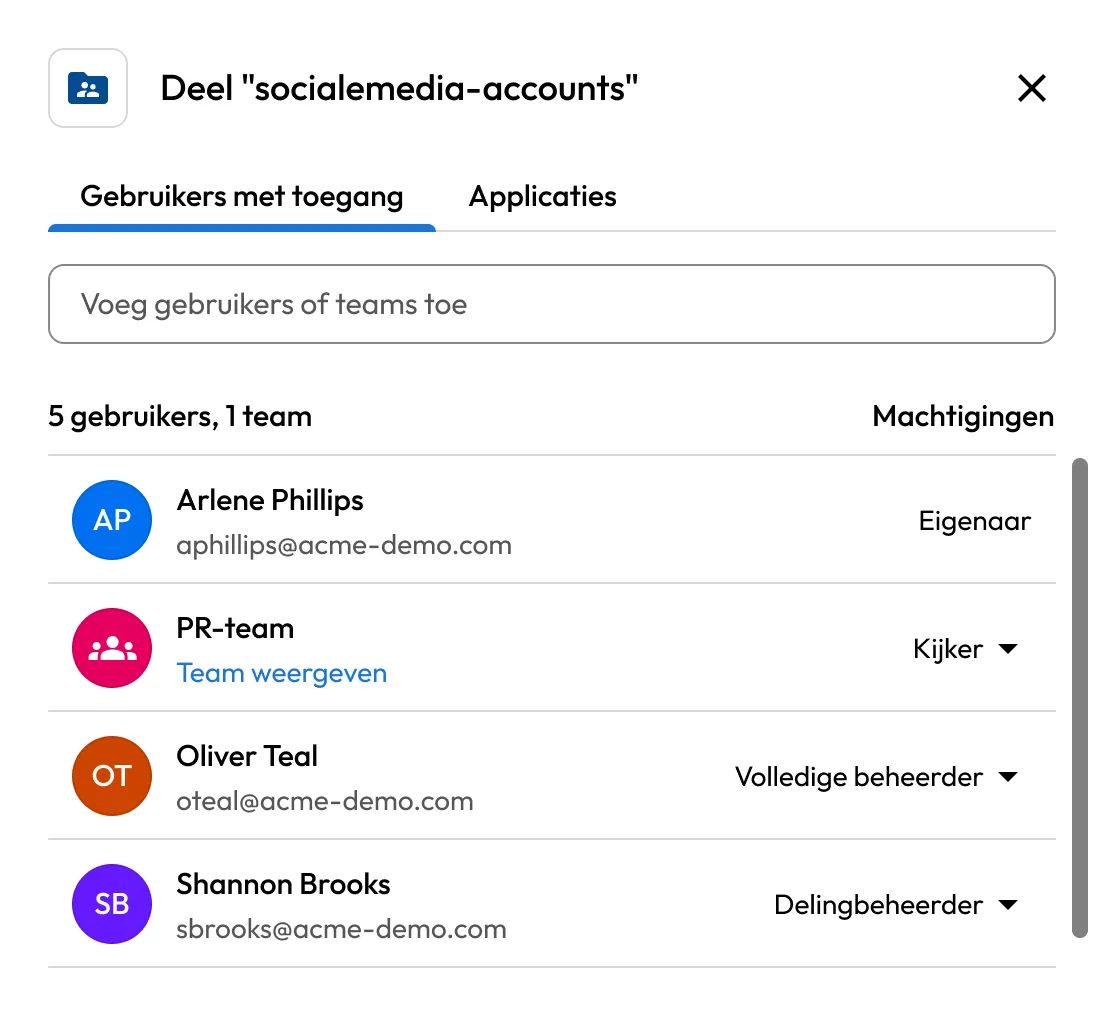
Add users and teams, update permissions, set expiration dates and revoke access from one place. No one can grant permission levels higher than their own.

Keeper sharing dialog showing user and team access permissions for the Social Media Accounts shared folder.

Support for Integrations, SDKs and APIs

Nested Shared Folders are fully supported in Keeper's 3rd party integrations such as Sailpoint, ServiceNow, Jira, Slack and other IT tools. Developers can work with folders using the Keeper Commander® CLI, SDKs, Terraform providers and REST API.

Keeper integration graphic showing the Keeper logo connected to Kubernetes, AWS, Google Cloud and Windows.

Bring order to your vault with Keeper

Veelgestelde vragen

What can each permission role do?

Nested Shared Folders offer five roles, each mapped to a clear set of abilities:

  • Viewer can view content and participants, but can't edit, share or manage permissions.
  • Share Manager can manage share permissions, invite others and approve requests, but can't edit content or grant access above their own level.
  • Content Manager can edit and add content, but can't manage sharing or permissions.
  • Content and Share Manager can manage both content and sharing, but can't grant access above their own level or permanently delete records.
  • Full Manager can edit, share and manage ownership, but can't manage organization-wide admin settings.

How is a Nested Shared Folder different from a Classic shared folder?

Nested Shared Folders are a ground-up rebuild of Keeper's folder, sharing and permissions model, with role-based permissions and inheritance across a five-level hierarchy. Classic folders use Keeper's original sharing model. Each type shows a distinct icon: Nested folders appear solid, Classic folders transparent.

Can Classic and Nested Shared Folders be mixed?

No, they're separate structures and can't be combined within the same hierarchy. Both can run side by side and there's no forced migration, so teams adopt Nested Shared Folders at their own pace.

What's the difference between Content Manager and Content and Share Manager?

Content Manager can edit and create records but can't control who has access. Content and Share Manager does both: managing content and managing sharing.

If someone is removed from a folder, do they lose the records inside it?

Yes, unless they have direct permissions on those individual records. Folder access and record access are tracked separately, so a direct grant on a record survives removal from the folder.

What happens when an expiration date is set?

Access ends automatically on that date, with no manual step. It's built for contractors, time-limited projects and any access that shouldn't outlive its purpose. For a full walkthrough, see the Nested Shared Folders guide.

Toestemming cookies intrekkenWe waarderen uw privacy

We gebruiken cookies op onze site om u de beste surfervaring te bieden, gepersonaliseerde advertenties over onze producten en inhoud aan te bieden en websiteverkeer te analyseren. Raadpleeg ons Privacybeleid voor meer informatie.

Meld u aan voor een gratis proefabonnement

Nu kopen